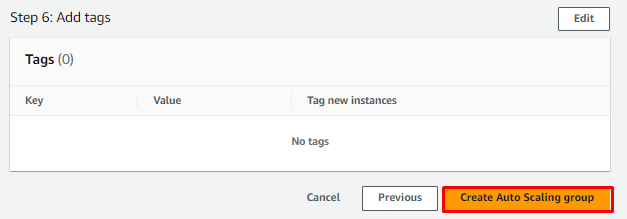
Create an Auto Scaling Group
Step 1: Sign in to the AWS Management Console and open the Amazon EC2
console at https://us-east-1.console.aws.amazon.com/ec2/
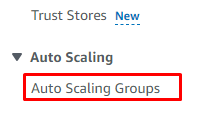
Step 2: In the left navigation pane, choose Auto Scaling Groups.
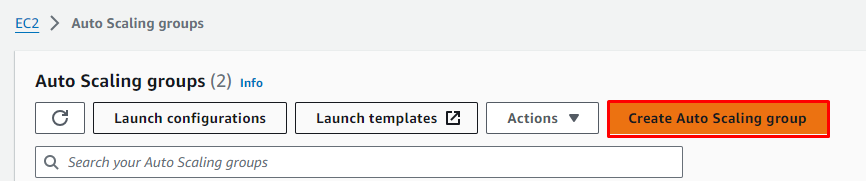
Step 3: Choose Create an Auto Scaling group.
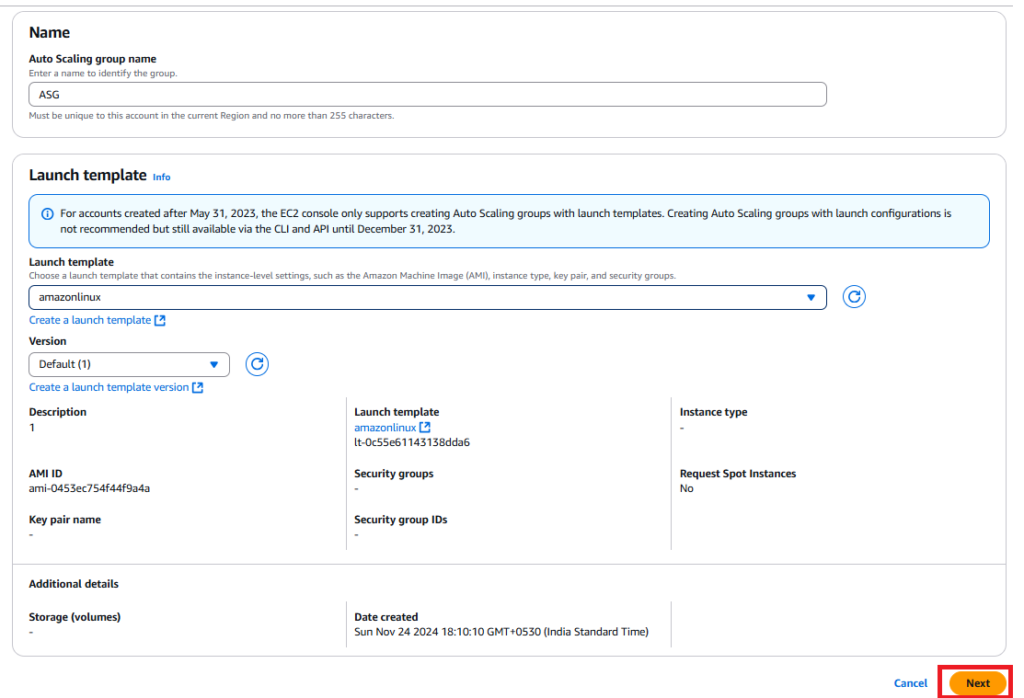
Step 4: On the Choose launch template or configuration page, do the following:
a. For the Auto Scaling group name, enter a name for your Auto Scaling
group.
b. For the Launch template, choose an existing launch template.
Click Next.
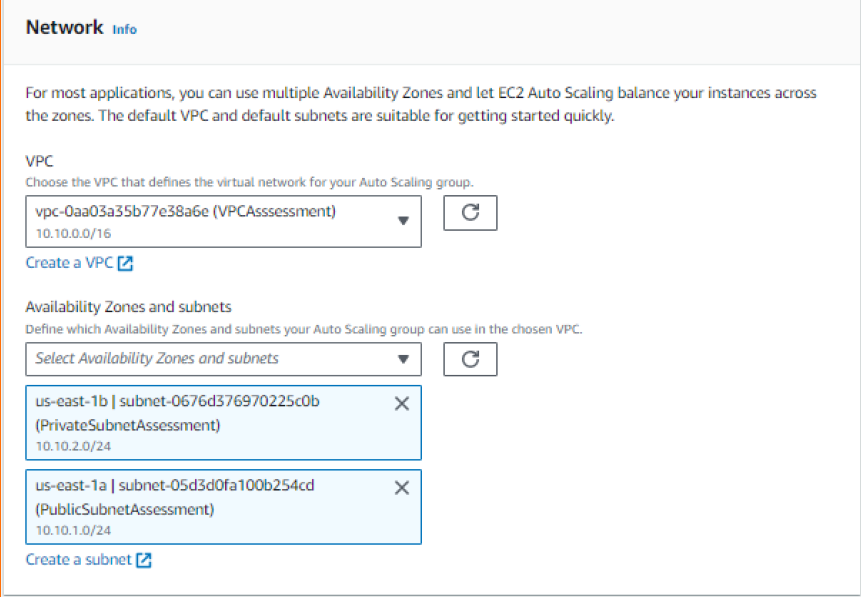
Step 5: Under Network, for VPC, choose a VPC. For Availability Zones and
subnets, choose one or more subnets in the specified VPC
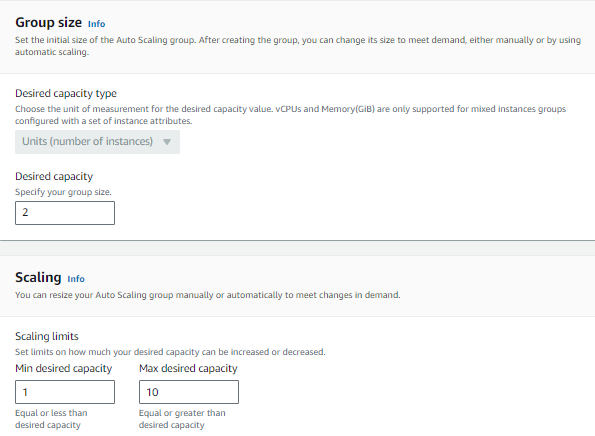
Step 6: In the Scaling section, under Scaling limits, if your new value for
Desired capacity is greater than Min desired capacity and Max desired
capacity, the Max desired capacity is automatically increased to the new desired
capacity value.
Step 7: On the Review page, choose Create Auto Scaling group.