
What is a Load Balancer in AWS?
In modern cloud computing, managing high traffic and ensuring application availability are critical. A Load Balancer in AWS is a powerful tool that distributes incoming application or network traffic across multiple targets, such as EC2 instances, containers, and IP addresses. It ensures fault tolerance, high availability, and scalability for your applications.
Why Use a Load Balancer in AWS?
AWS Load Balancers provide the following benefits:
- Enhanced Availability: Prevents overloading any single server.
- Improved Performance: Routes traffic efficiently to the healthiest servers.
- High Fault Tolerance: Automatically detects unhealthy targets and reroutes traffic.
- Security: Supports SSL termination and protects against Distributed Denial of Service (DDoS) attacks.
Types of Load Balancers in AWS
AWS offers four types of load balancers to cater to different application needs:
- Application Load Balancer (ALB)
- Operates at Layer 7 of the OSI model.
- Ideal for web applications.
- Features include:
- Intelligent routing based on HTTP/HTTPS headers, URLs, and more.
- WebSocket support.
- Network Load Balancer (NLB)
- Operates at Layer 4 of the OSI model.
- Designed for ultra-low latency and high throughput.
- Best suited for real-time applications like gaming or financial systems.
- Gateway Load Balancer (GWLB)
- Simplifies the deployment of third-party virtual appliances (e.g., firewalls, intrusion detection systems).
- Operates at Layer 3 (network layer).
- Great for centralizing and scaling virtual appliances.
- Classic Load Balancer (CLB)
- A legacy load balancer that operates at both Layer 4 and Layer 7.
- Suitable for applications that require basic load balancing.
How to Choose the Right Load Balancer
- For Web Applications: Use ALB for its content-aware routing.
- For High-Performance Needs: Choose NLB for low latency and high throughput.
- For Security and Centralization: Opt for GWLB to integrate virtual appliances.
- For Simpler Needs: CLB is suitable but not recommended for new applications due to its legacy status.
How To Create A Load Balancer?
Problem Statement:
You work for XYZ Corporation which uses on-premise solutions and a limited number of systems. With the increase in requests in their application, the load also increases. So, to handle the load the corporation must buy more systems almost on a regular basis. Realizing the need to cut down the expenses on systems, they decided to move their infrastructure to AWS.
Tasks To Be Performed:
1. Manage the scaling requirements of the company by:
- Deploying multiple compute resources on the cloud as soon as the load increases and the CPU utilization exceeds 80%
- Removing the resources when the CPU utilization goes under 60%
2. Create a load balancer to distribute the load between compute resources. 3. Route the traffic to the company’s domain
Answer
Login to AWS Console and go to the EC2 dashboard.
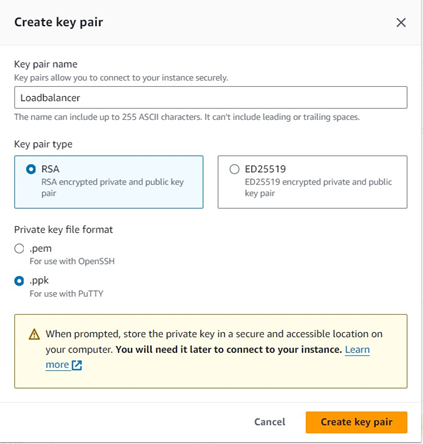
Create a Key Pair for accessing the EC2 instances.
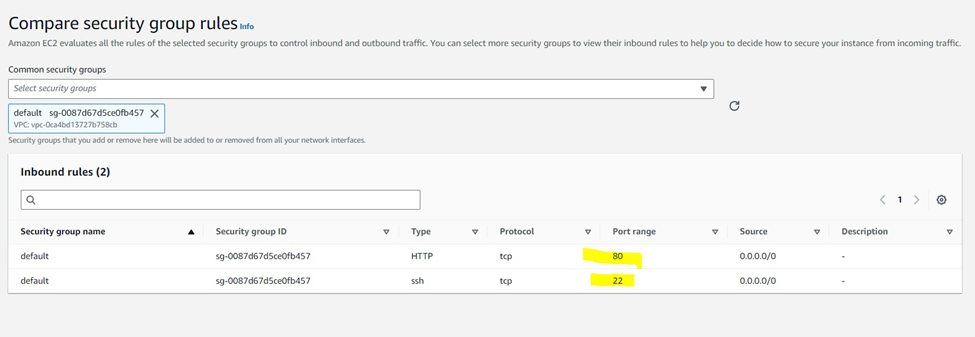
Create Security Groups
Go to the Security Groups Create Security Group (cloudwatch agent) and allow port 80 and 22.
Now Security Group is created successfully.
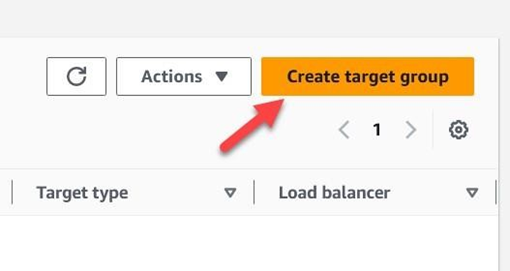
EC2 Dashboard Load Balancing Target Groups Create Target Group
Choose target Type
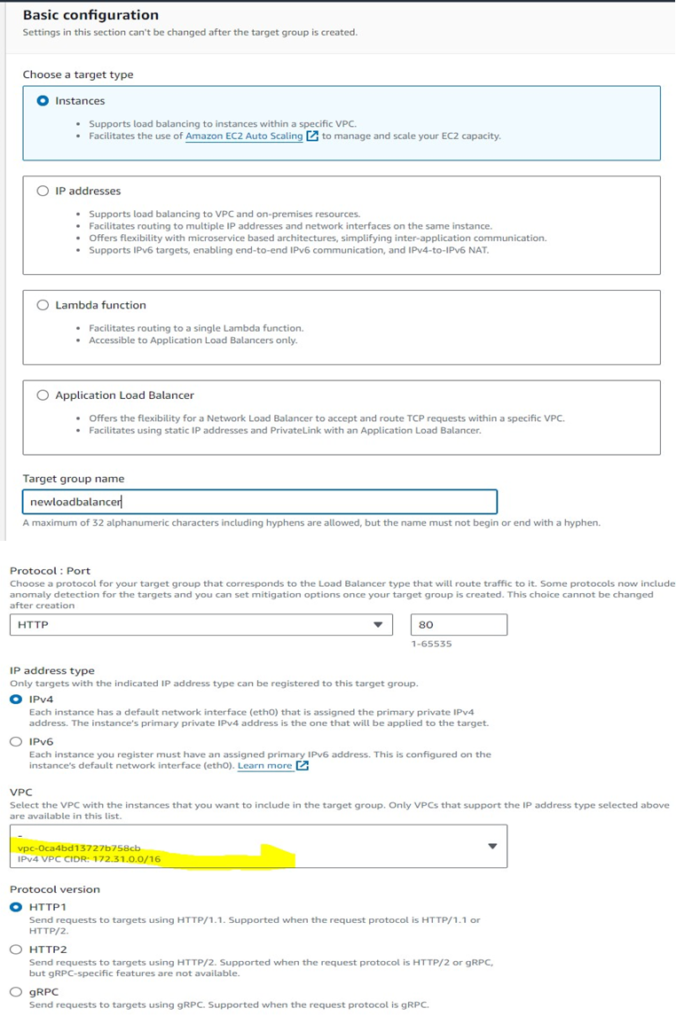
Click Next
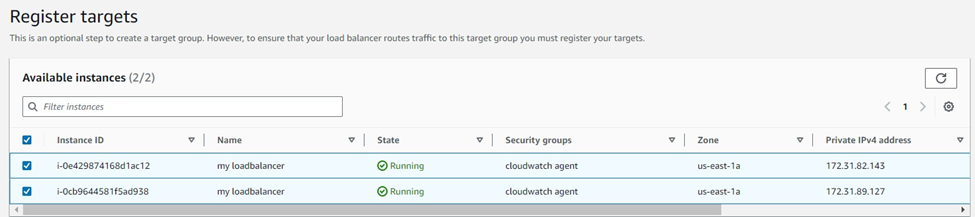
Click Create Target Group
Now Target group has been created successfully Load Balancer
EC2 Dashboard Load Balancing Load Balancer Create Load Balancer
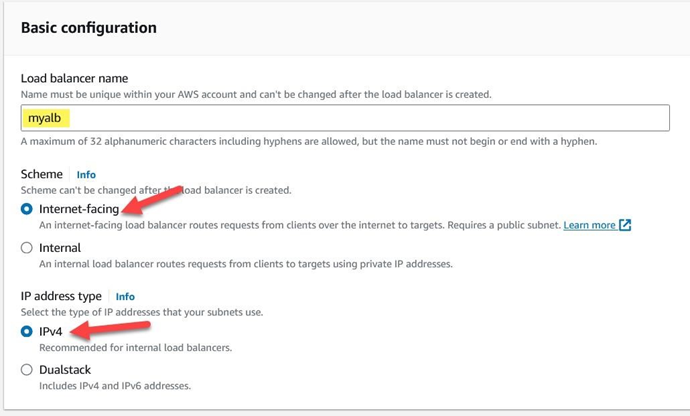
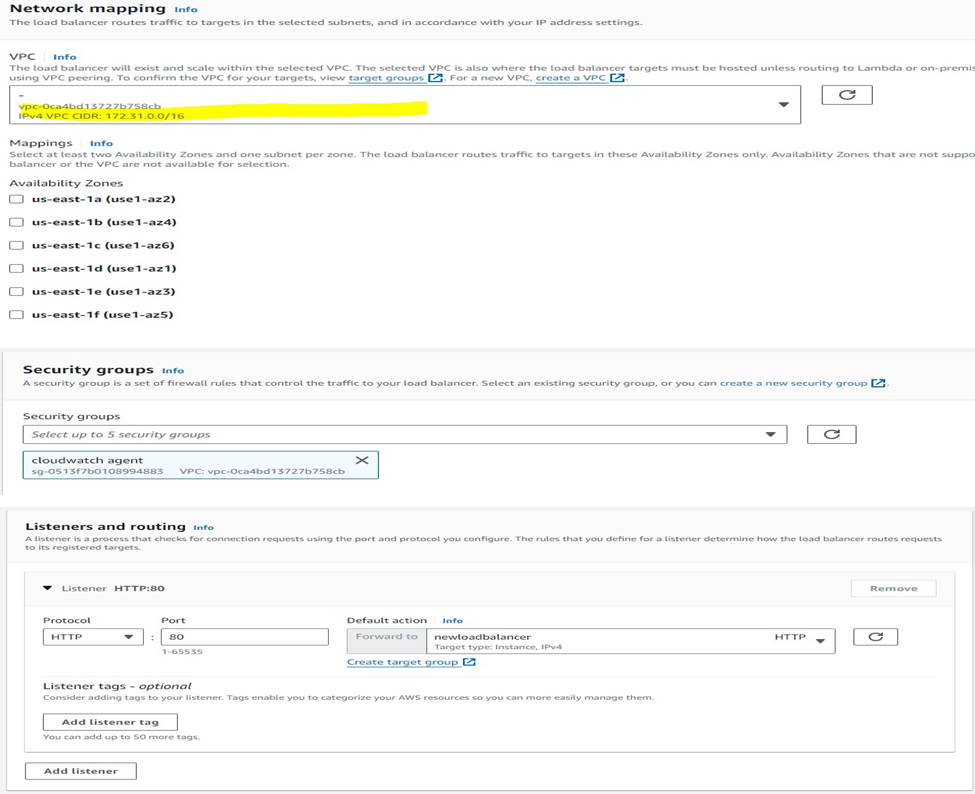
Select the Target group which we have created
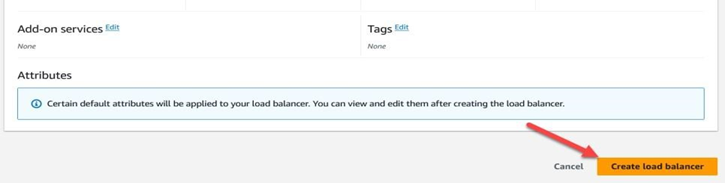
Click Create Load Balancer
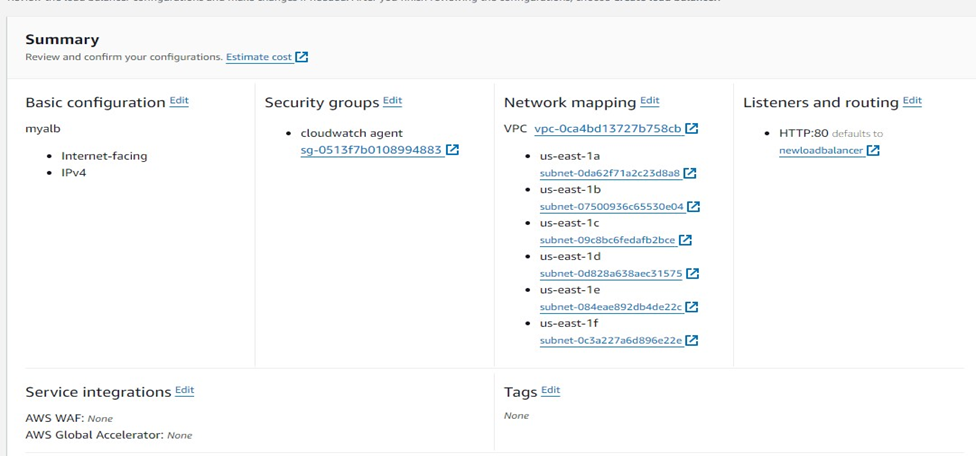

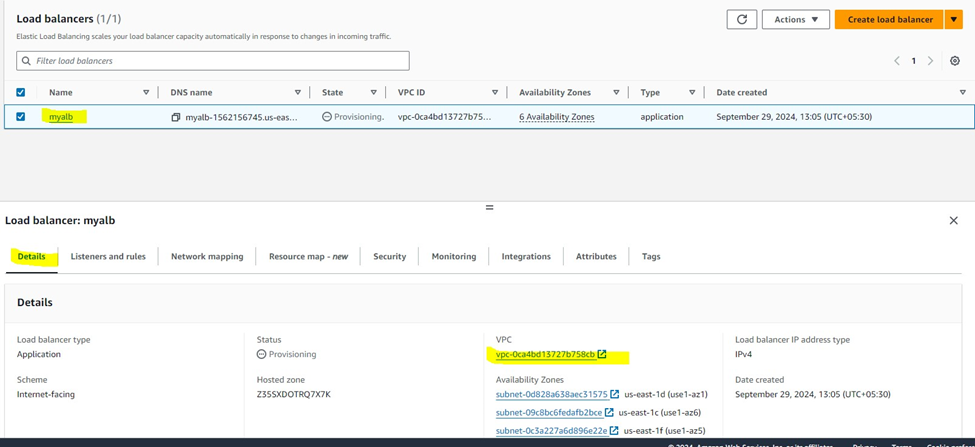
ALB creation will take a few minutes
Create Launch Template
EC2 Dashboard>Instance>Launch Templates

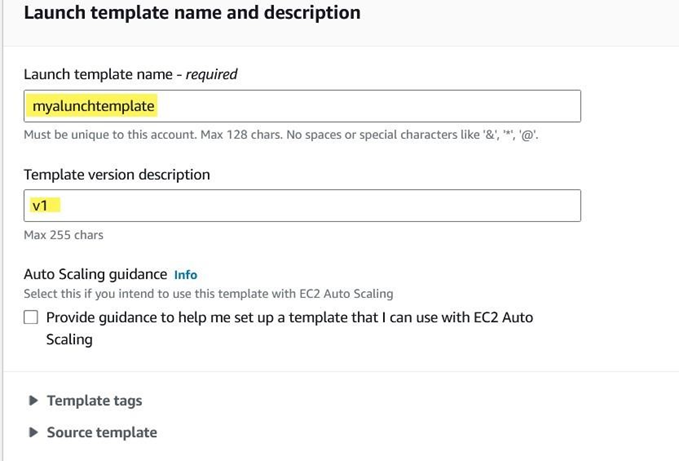
Select OS as Amazon Linux
Instance Type is t2.micro (Free Tier Eligible)
Select the Key Pair
Select the Security Group
In Advanced options provide the user data script to make your website ready

Create Auto Scaling Groups
EC2 Dashboard Auto Scaling Create Auto Scaling Groups

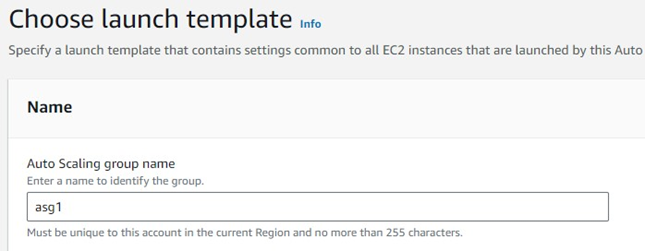
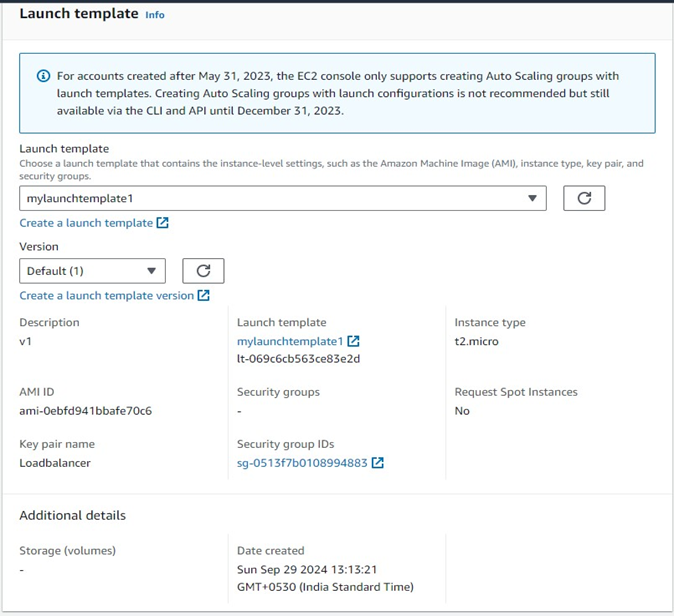
Click Next.
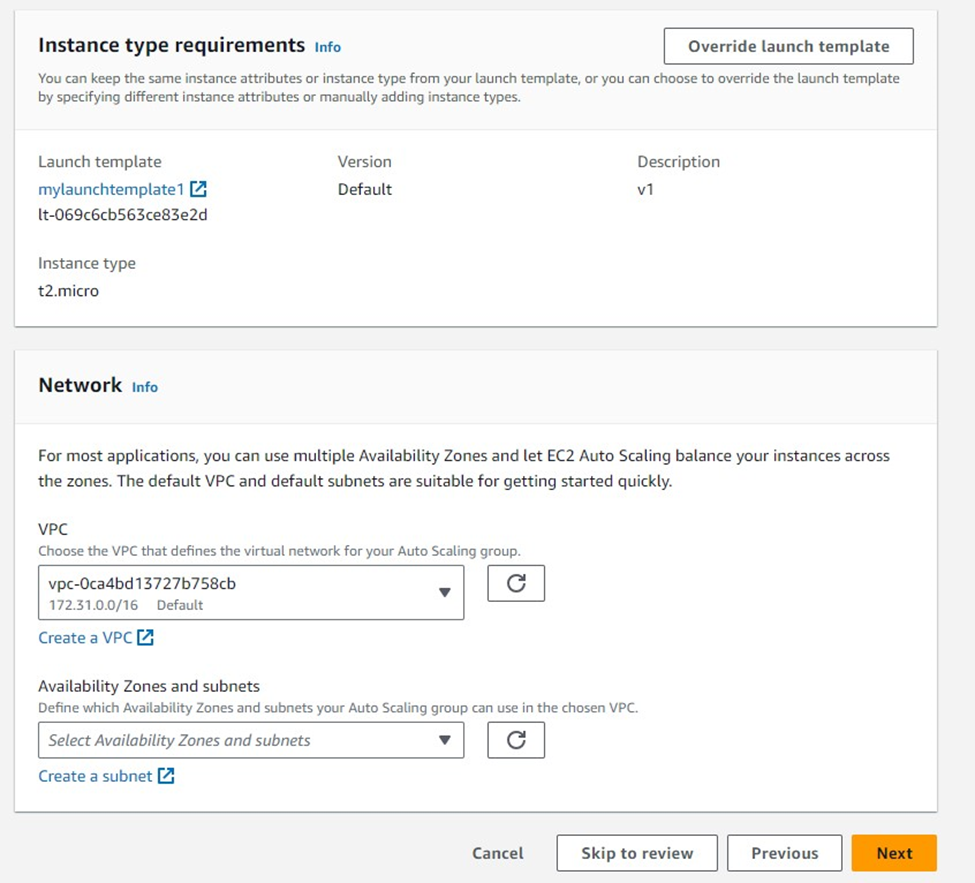
Select the VPC Settings and Subnets
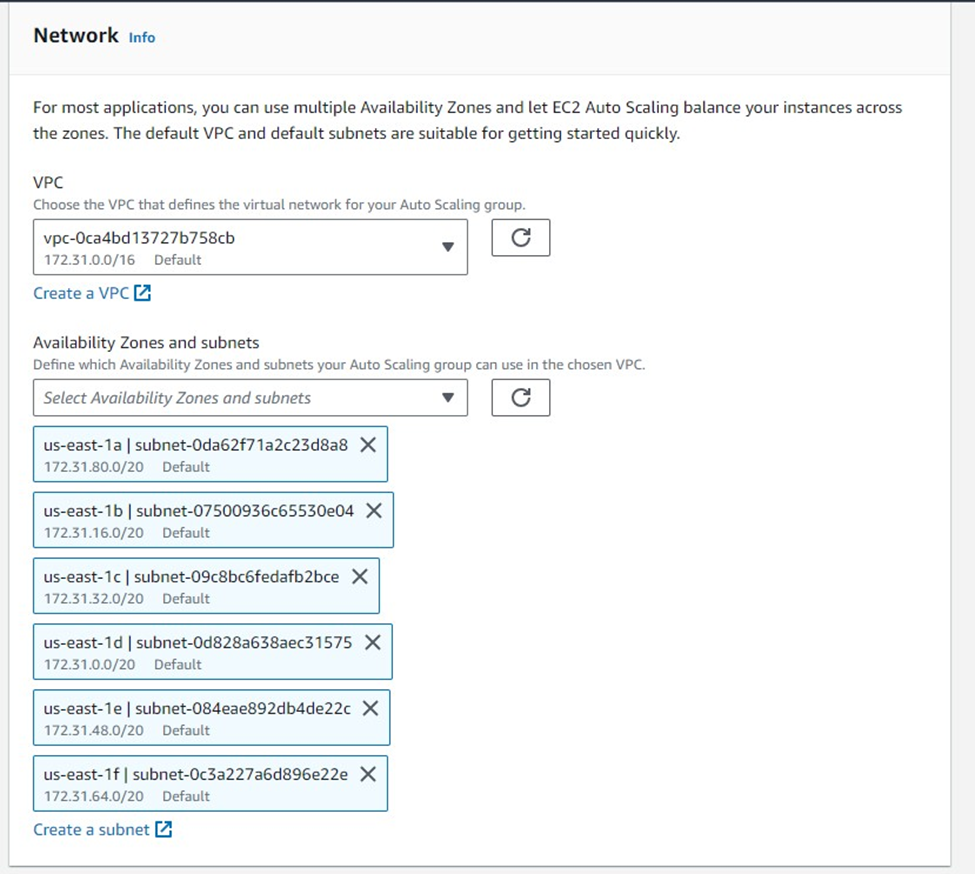
Click NEXT
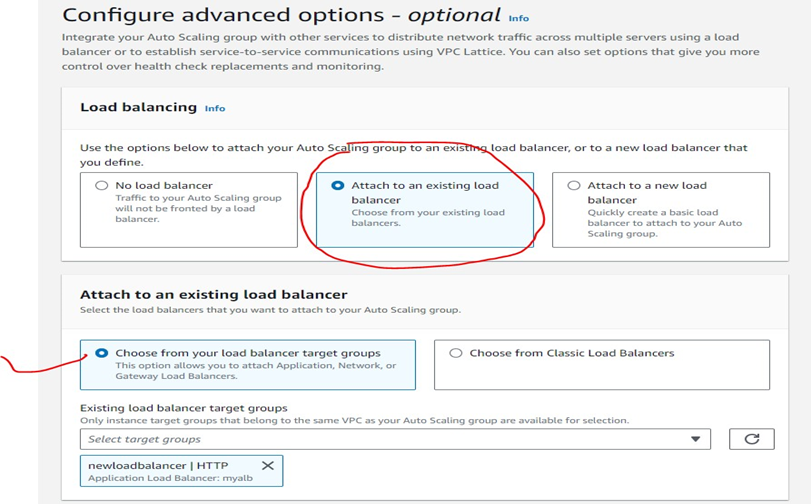
Load Balancing options Attach to an existing load balancer.
Choose from your load balancer target groups (Since we already created one)
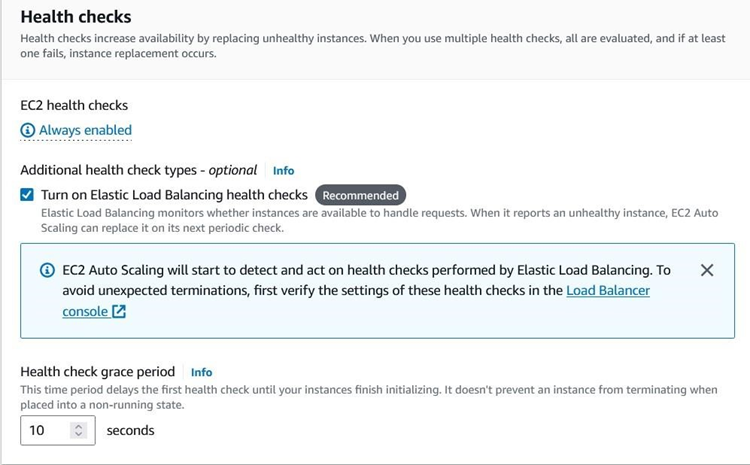
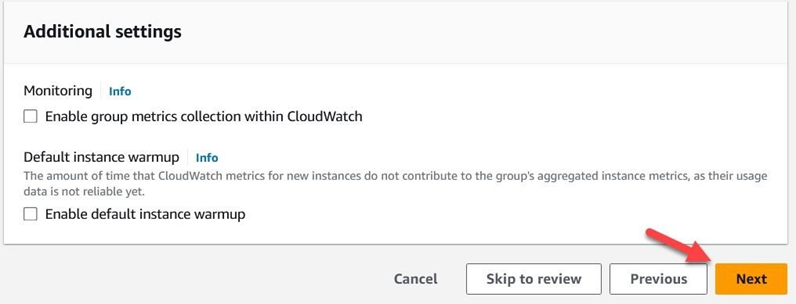
Click Next
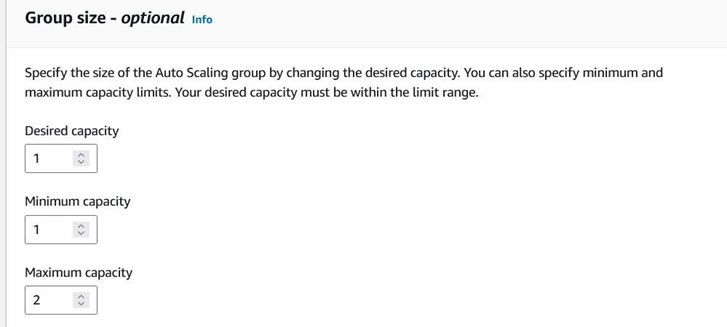
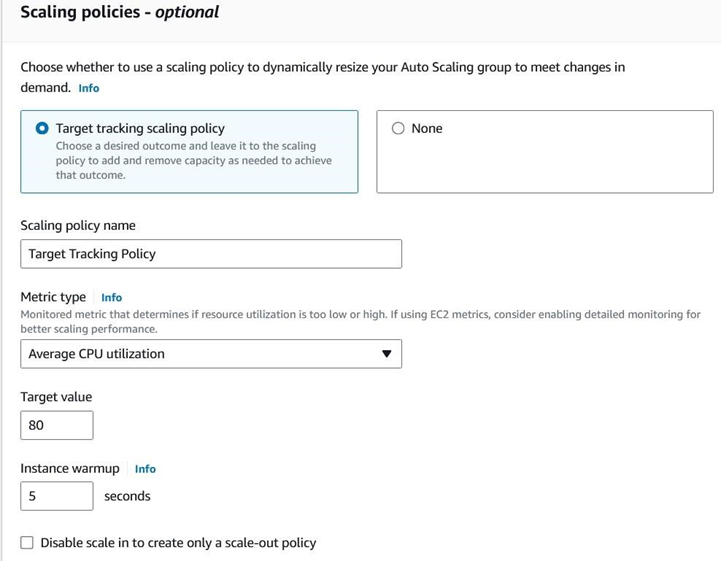
Configure Scaling Policies as described in questions, when CPU 80% utilized it should create another EC2 instance
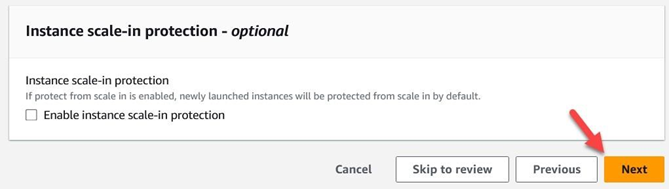
Click Next
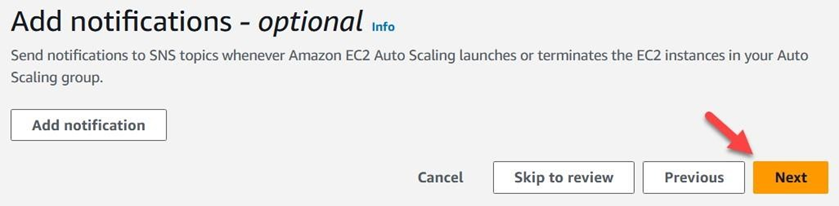
Click Next
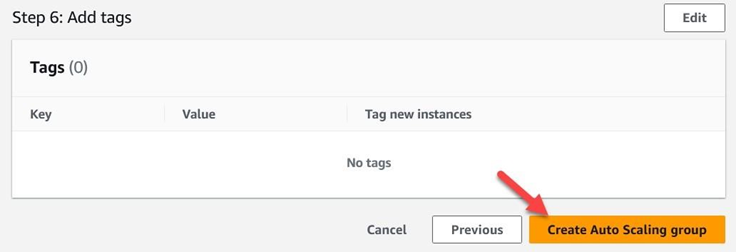
Create ASG
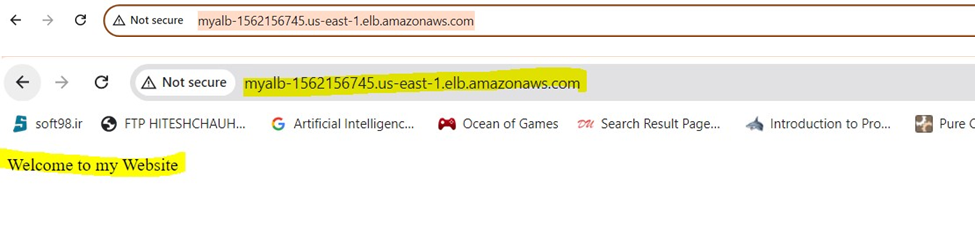
Access the Website using ALB URL.
The ASG is working fine as expected

Final Thoughts
A Load Balancer is indispensable for modern applications, ensuring seamless traffic management, enhanced scalability, and high availability. AWS offers versatile load balancing solutions tailored to your specific requirements, making it easier than ever to build robust and reliable applications.
Have questions about load balancers or want to learn more? Let us know in the comments!
#AWS #LoadBalancer #CloudComputing #DevOps #Networking #WordPressBlog #TechBlog #Scalability #HighAvailability
