
Now select the bucket you want to use for creating a static website, Click on Properties
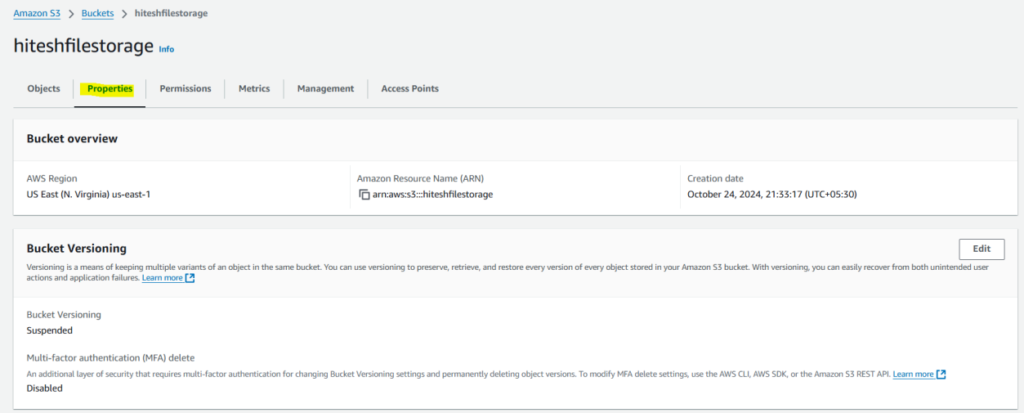
Scroll Down The Page and you will see static web hosting option

Go To edit By default you will see the disable but you want to enable this option
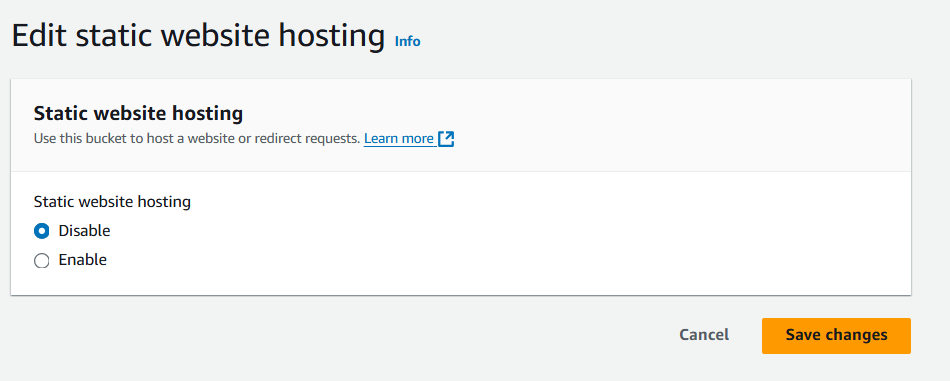
After enable this options.
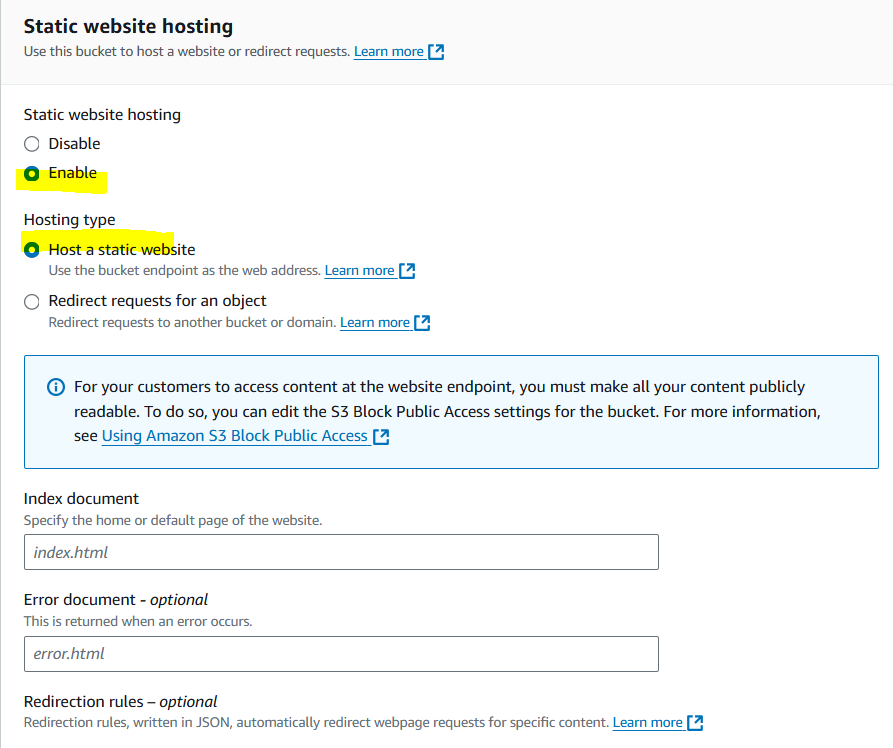
Select Enable
Provide the index.html and error.html file name they should be case sensitive and name should be matching as per the apache default configuration then click save changes

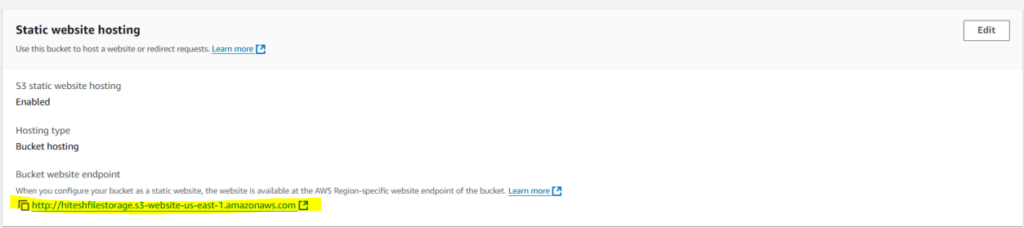
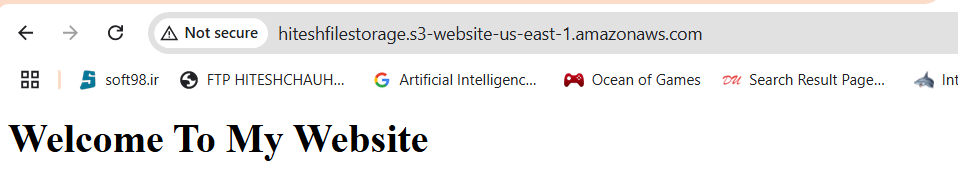
Once the website is enable it will provide you the endpoint details, you have to copy the URL and then browse is using the browser.
Before that, you have to upload index.html and error.html to the S3 bucket.
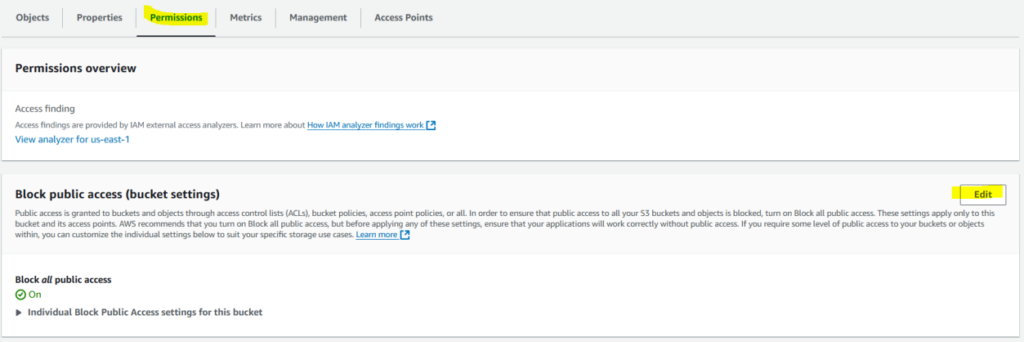
Go to permission and click edit.
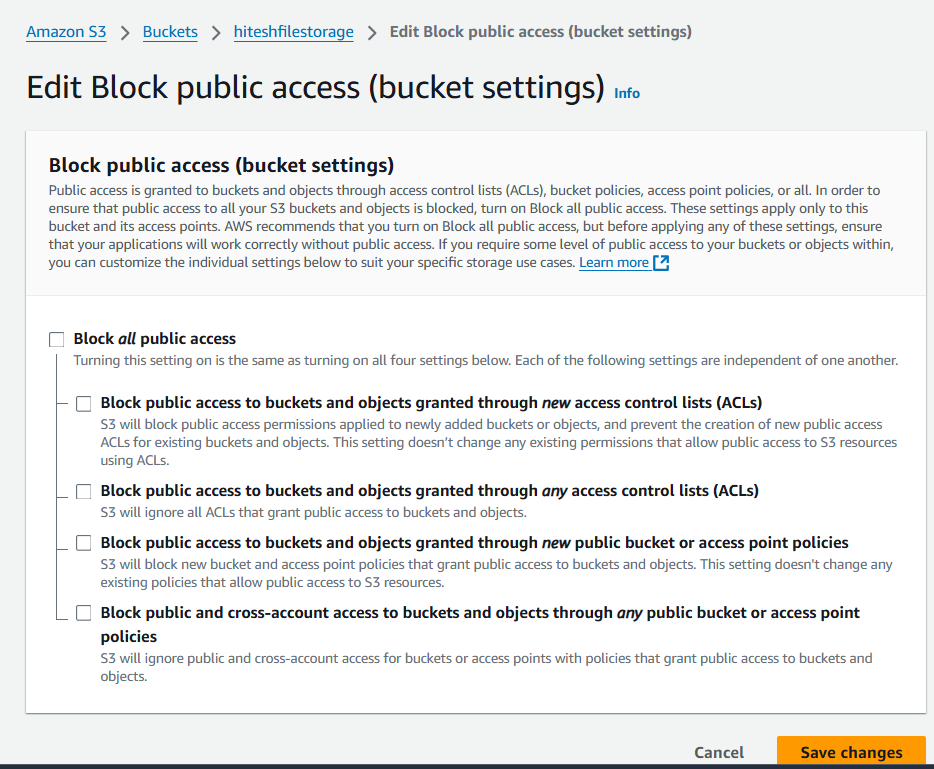
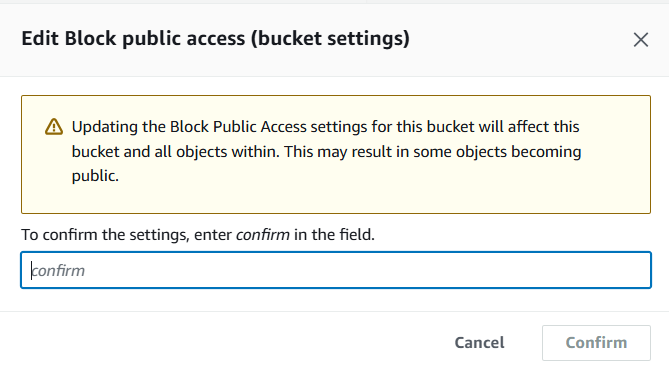
Once your enable the public access on the S3 bucket, you need to write the bucket policy otherwise it will give the below error message.
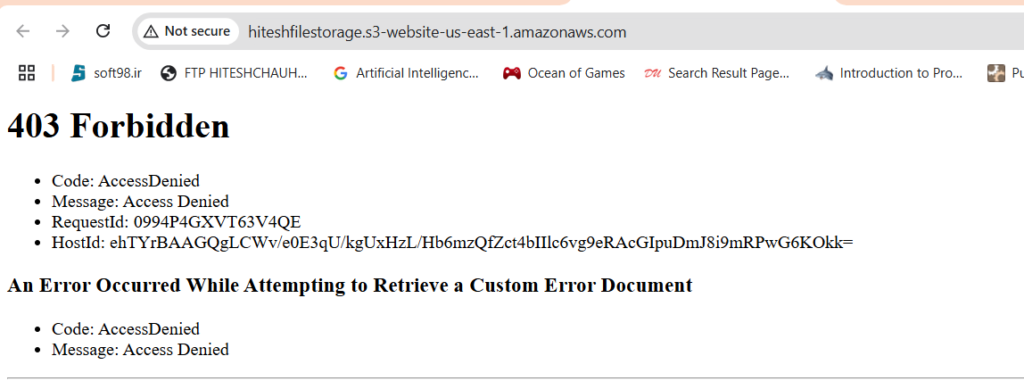
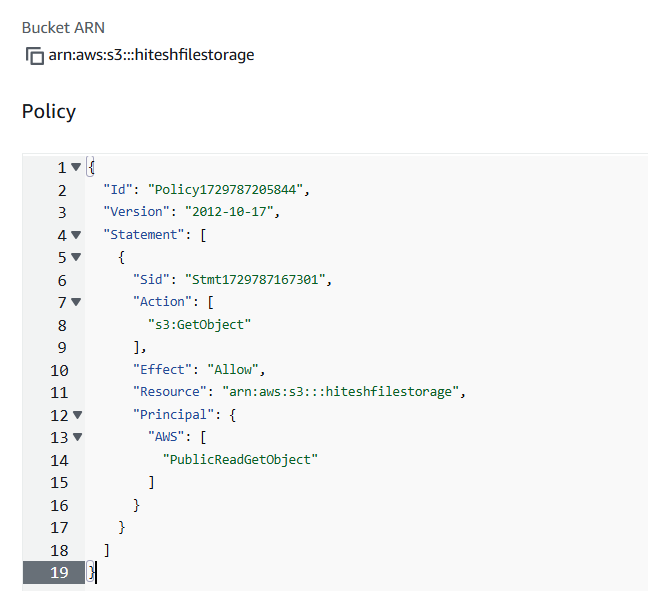
{
"Version": "2012-10-17",
"Id": "Policy1729787205844",
"Statement": [
{
"Sid": "PublicReadGetObject",
"Effect": "Allow",
"Principal": "*",
"Action": "s3:GetObject",
"Resource": "arn:aws:s3:::hiteshfilestorage/*"
}
]
}
Add the bucket policy as shown above that’s it your static website is published successfully.
Adding Life Cycle Policies
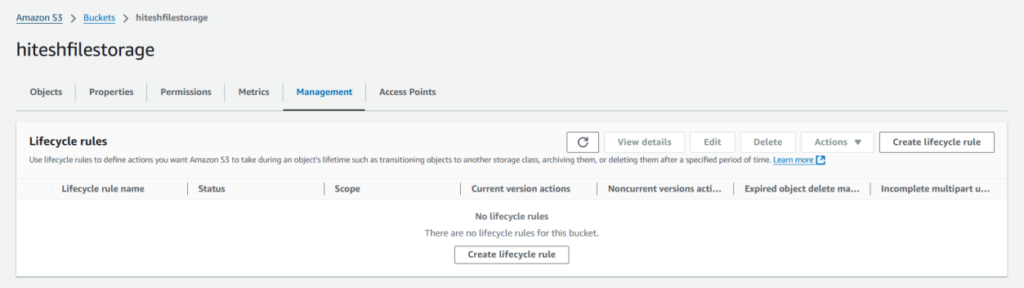
Select the S3 bucket you want to apply the Lifecycle rules, S3 bucket Management>Lifecycle rules>Create lifecycle rule
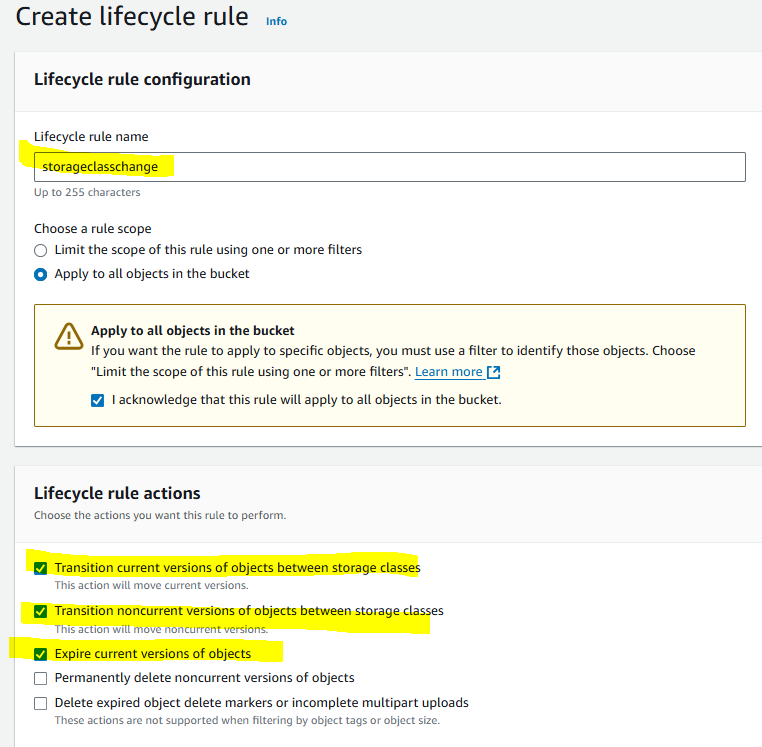
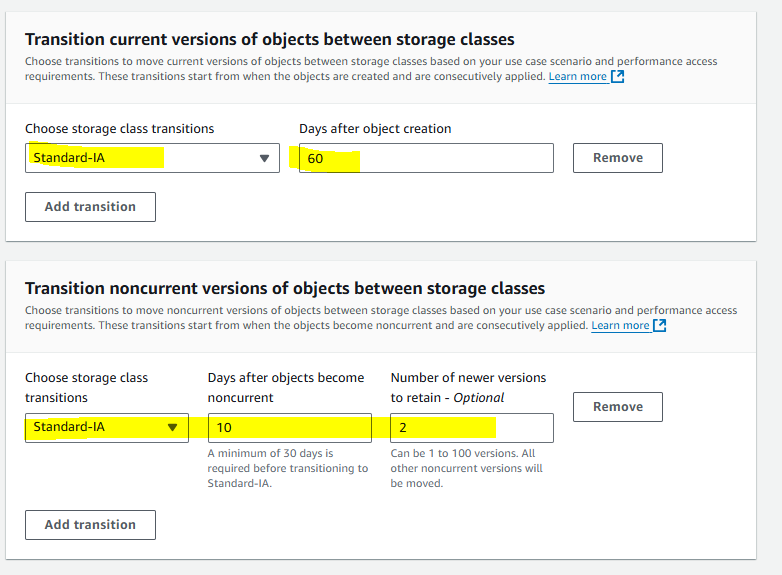
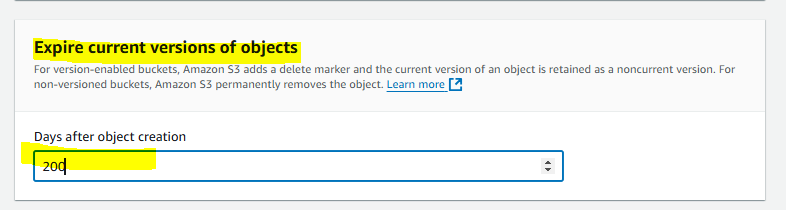
Minimum 30Days is required to objects to become noncurrent
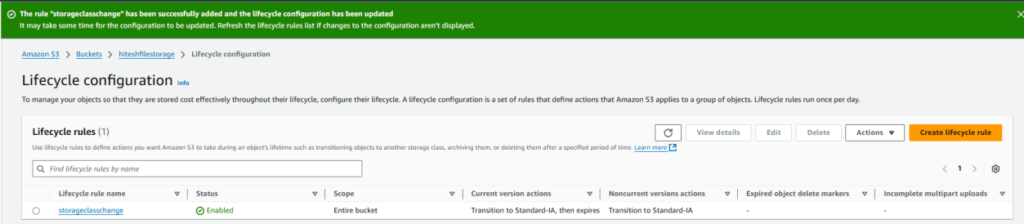
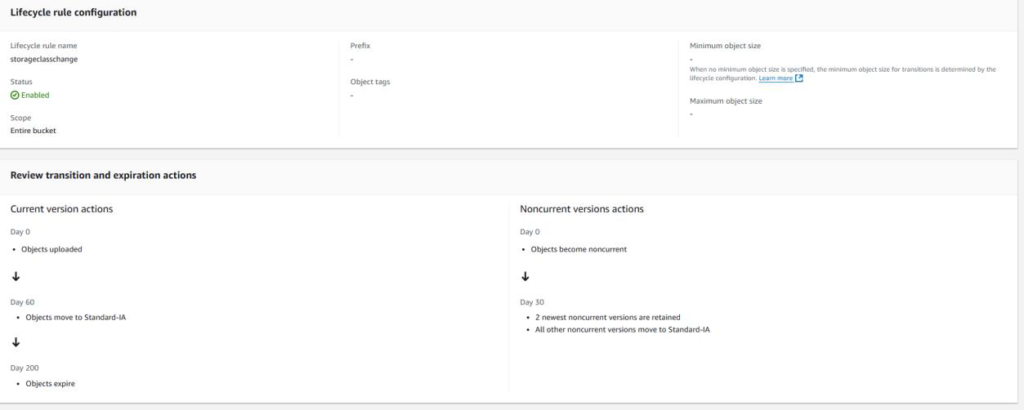
That’s All LifeCycle policies are configured successfully.
