
Step 1: Sign in to the AWS Management Console and open the Amazon RDS
console at https://console.aws.amazon.com/rds/.
Step 2: In the navigation pane, choose Databases.
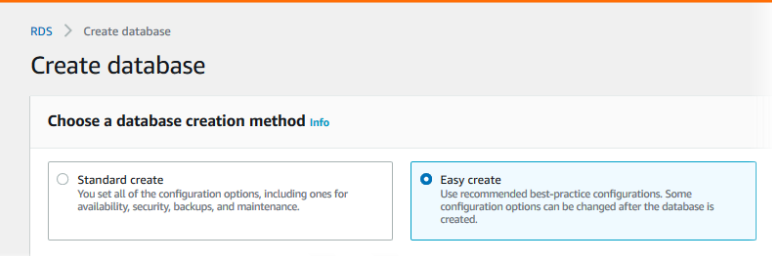
Step 3: Choose Create database and make sure that Easy create is chosen.
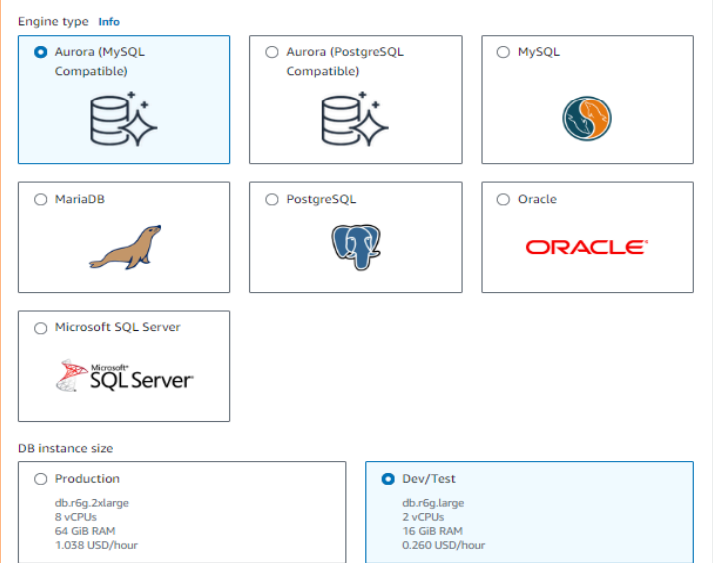
Step 4: In Configuration, choose Aurora (MySQL Compatible) for Engine type.
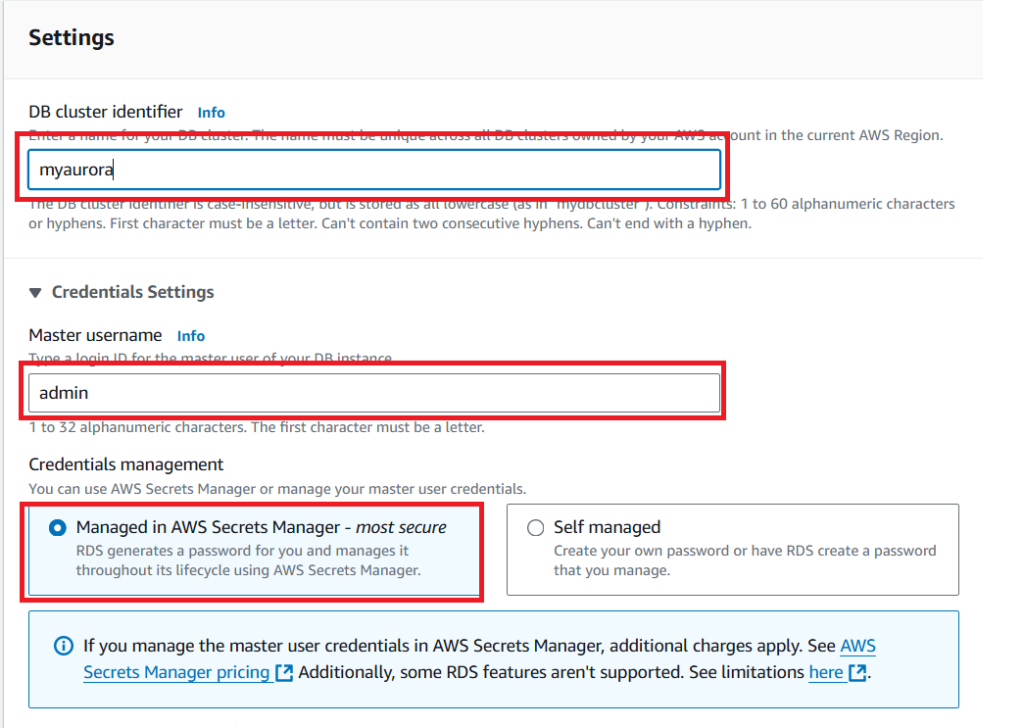
For DB instance size, choose Dev/Test. For DB cluster identifier, enter myaurora
Step 5: For Master username, enter a name for the master user, or keep the
default name.
To use an automatically generated master password for the DB cluster, select
Auto generate a password.
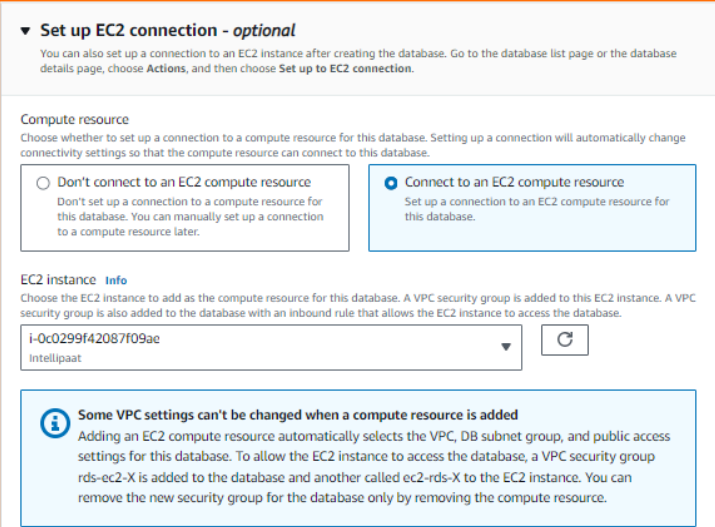
Step 6: To set up a connection with the EC2 instance, open Set up EC2
connection – optional.
Select Connect to an EC2 compute resource. Choose the EC2 instance you wish
to connect to
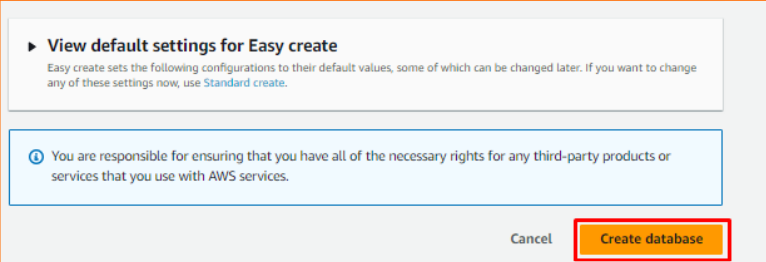
Step 7: Choose Create database.
Step 8: In the Databases list, choose the name of the new Aurora MySQL DB
cluster to show its details.
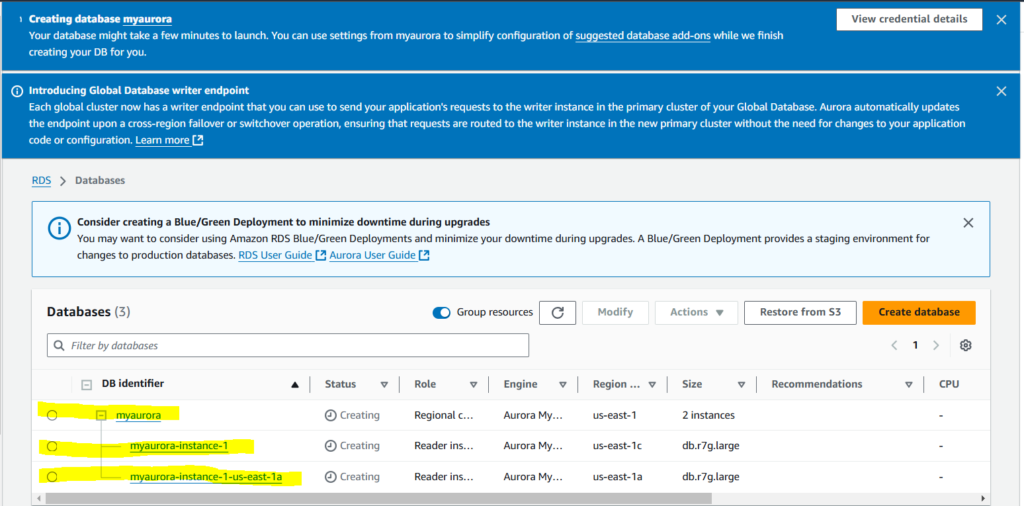
Read-replica also created
