
Login to AWS Management Console: –
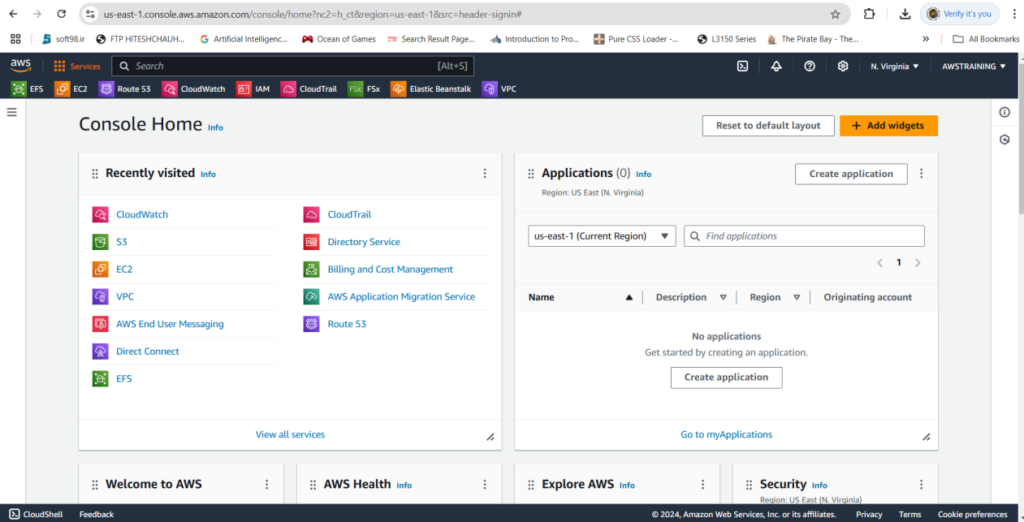
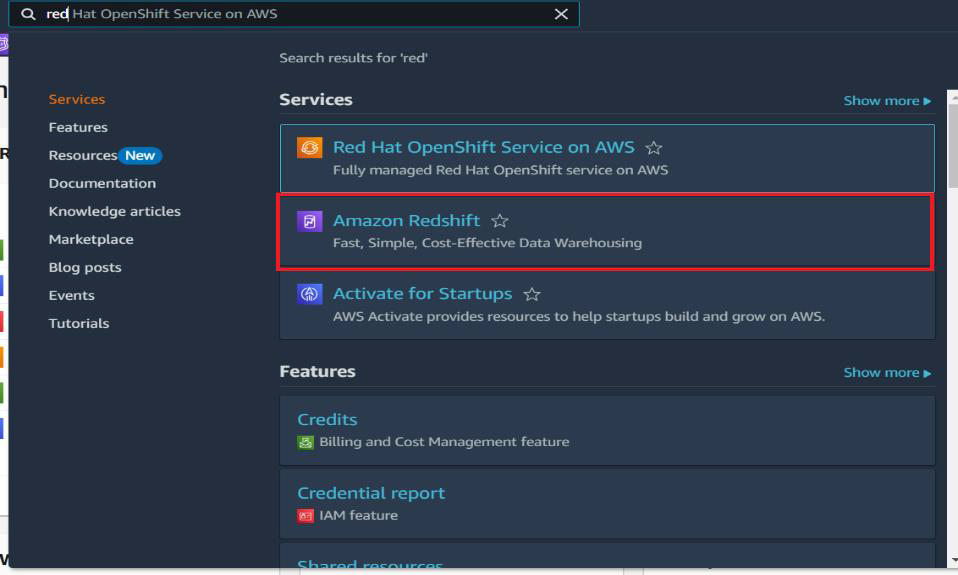
Then Search Amazon Redshift.
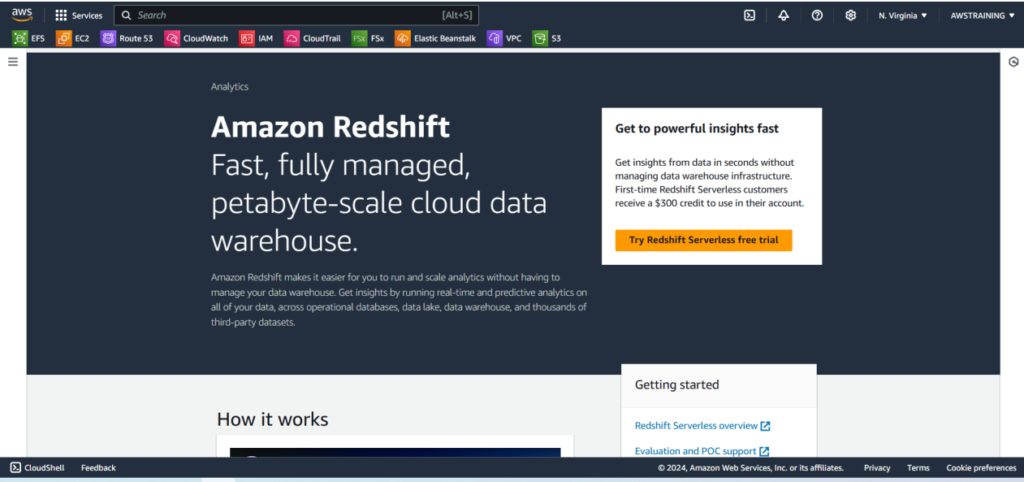
After Click the Amazon Redshift You will see like this screen
Note:Amazon Redshift is not a free service but Redshift gives Trial version for use.
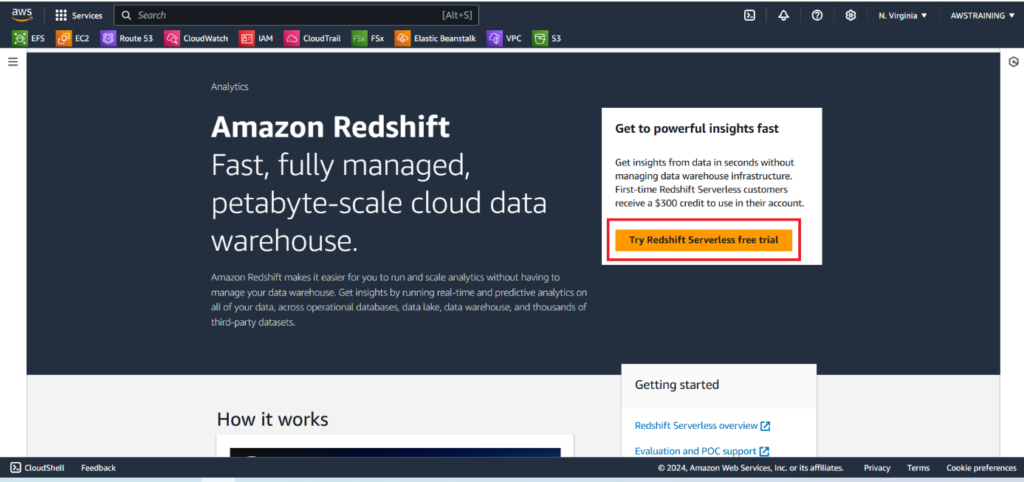
Click Try Redshift Serverless free Trial.
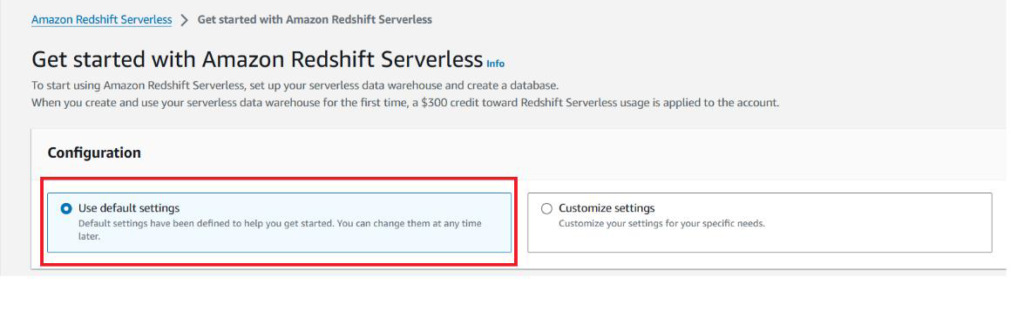
After Click the Redshift serverless free trial version you will see the configuration option.
In configuration option there is two options.
1.Use Default Setting
2.Customize Setting.
But Right now I choose the Option 1 Use default Setting.i don’t want to go customize setting in redshift.
Next is namespace.
In this namespace target namespace will be default-namespace
In database name and password option in database name is dev
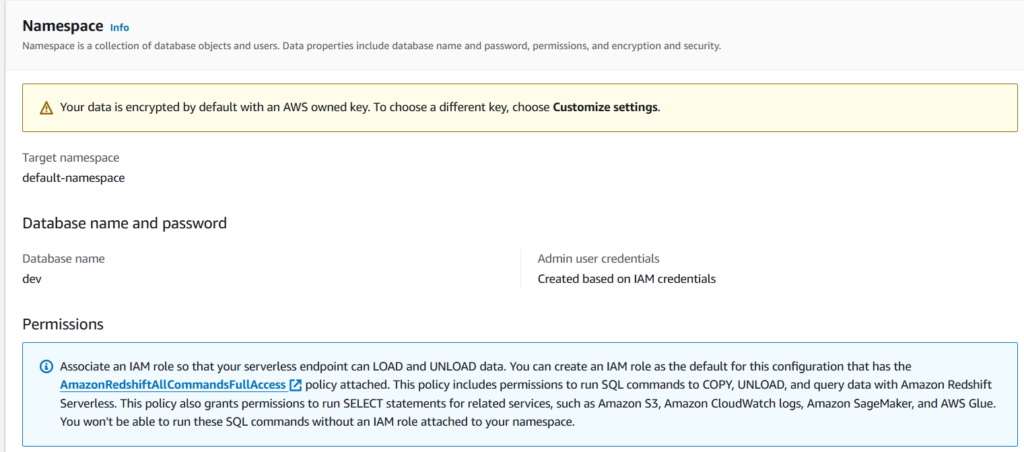
In this Associated IAM roles.
If incase there is no associate role to redshift so need to assign the IAM role.

In Encrytion and security option will be default setting.

In Workgroup Setting,
Workgroup name Will be default-workgroup.
Capacity will be no changes.
In Network and security Settings
Virtual private cloud(VPC)
vpc-0ca4bd13727b758cb
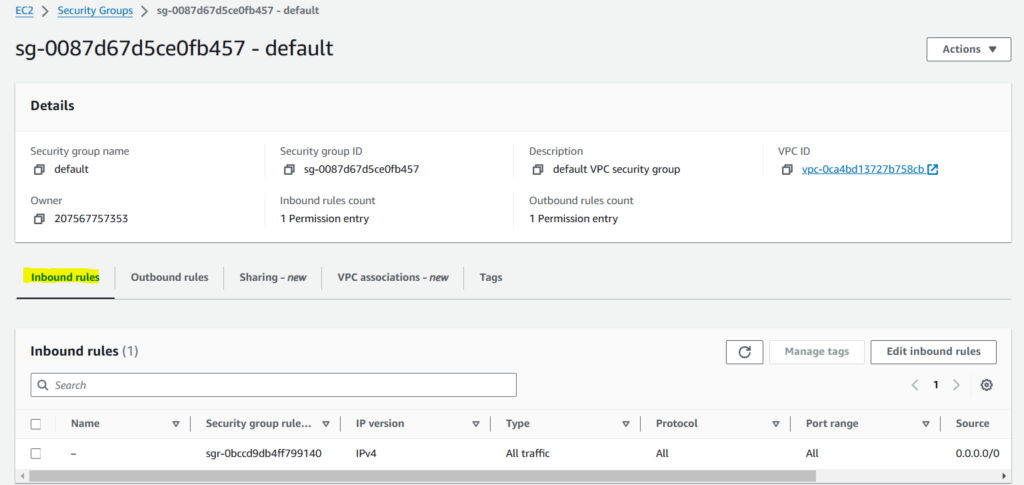
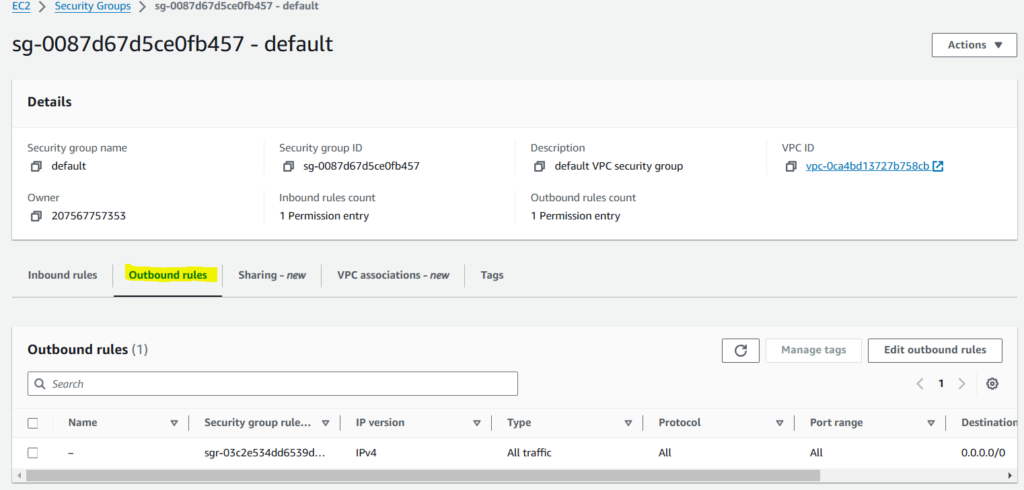
VPC Security group
sg-0087d67d5ce0fb457
Inbound rule
Outbound rule
In Workgroup You need assign the workgroup name so in my case this is default-workgroup
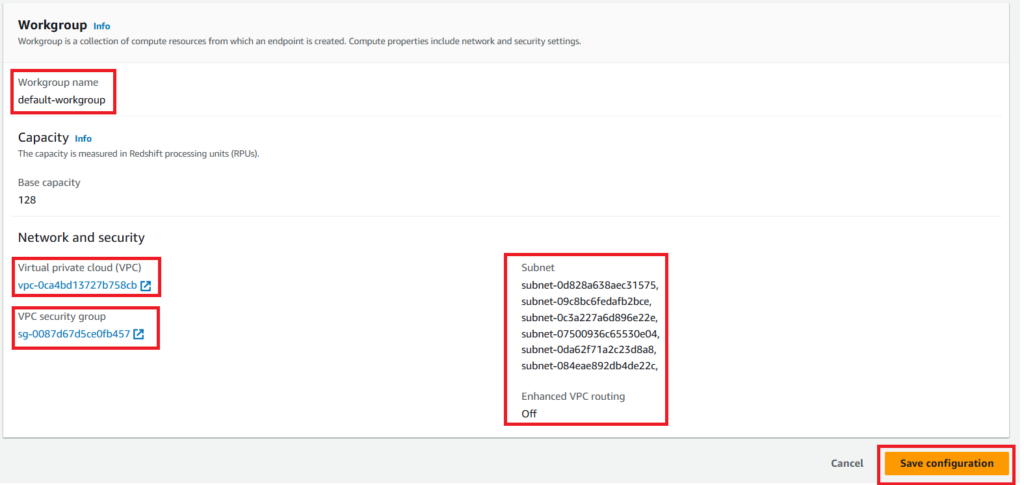
Click Save Configuration
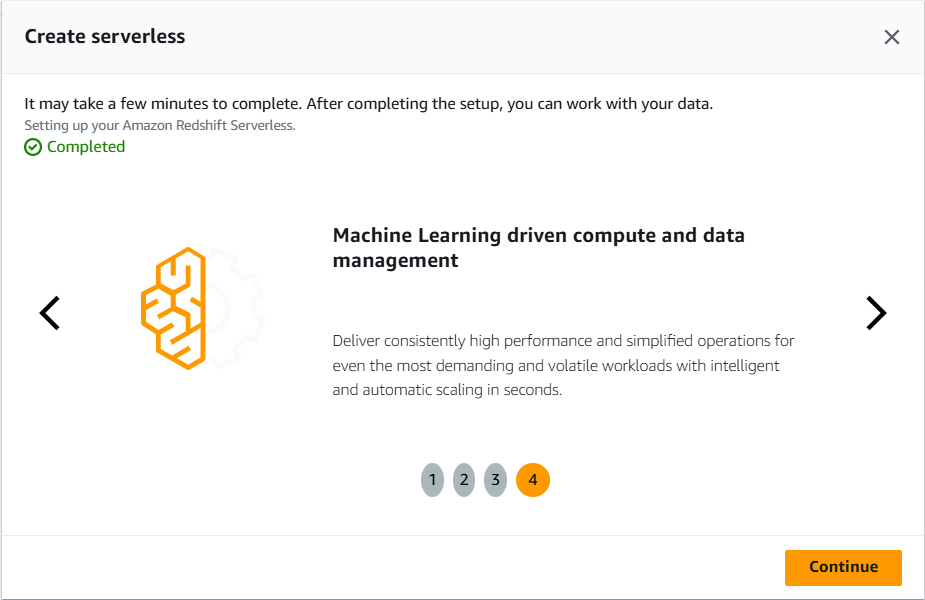
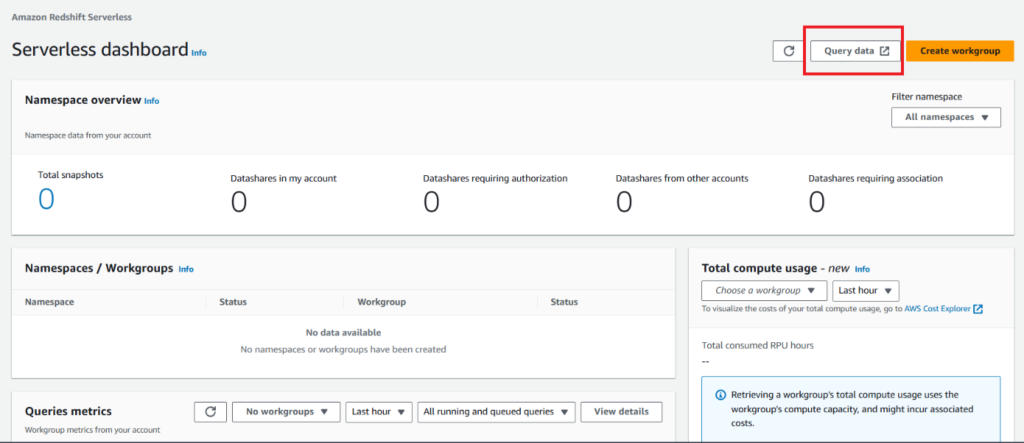
After Click the continue Button You will see like this screen.this is the serverless dashboard.
Select the query data
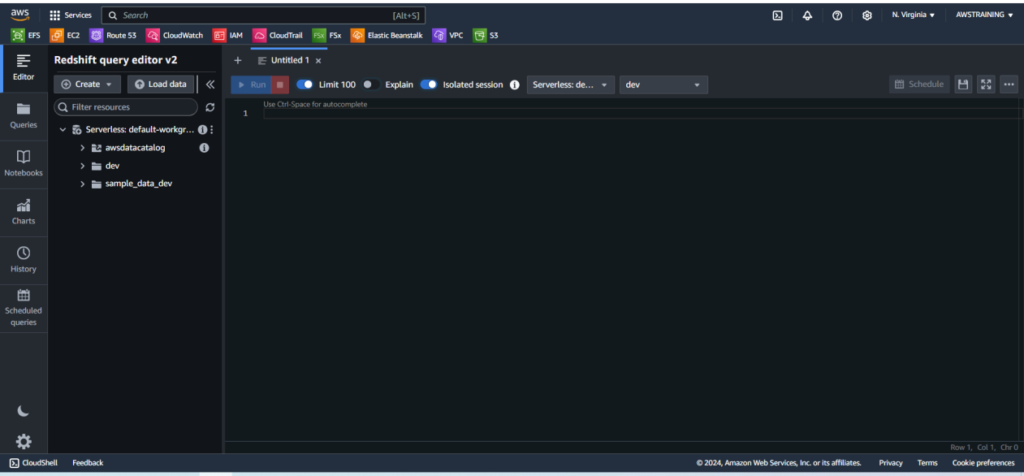
After click the query data you will see the query editor of redshift.
After Query editor you need to create the table
For example I want create the table of student so this is the query.
CREATE TABLE students
(
p_partkey INTEGER NOT NULL,
p_name VARCHAR(22) NOT NULL,
p_rollnumber VARCHAR(6),
p_nthclass VARCHAR(7) NOT NULL
);
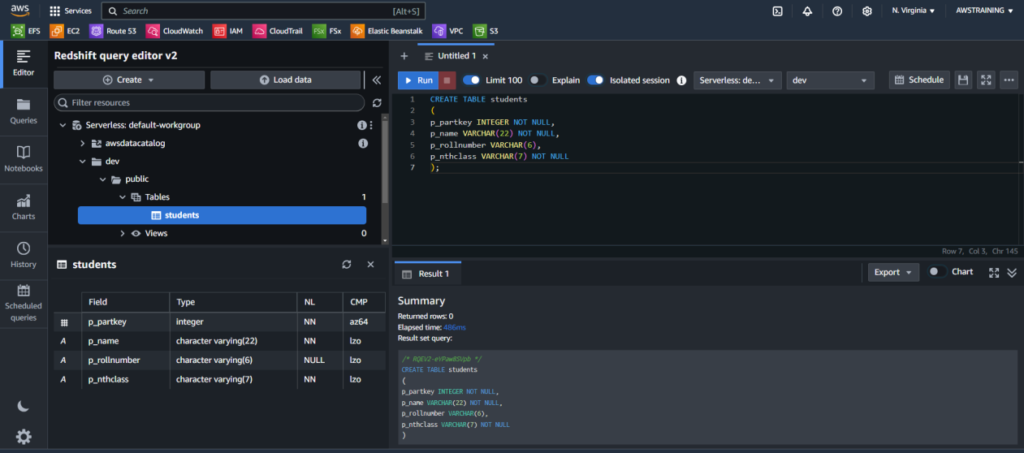
After Create the student table.this is the value of student we need to insert in table.
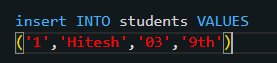
Insert the data using the above query.
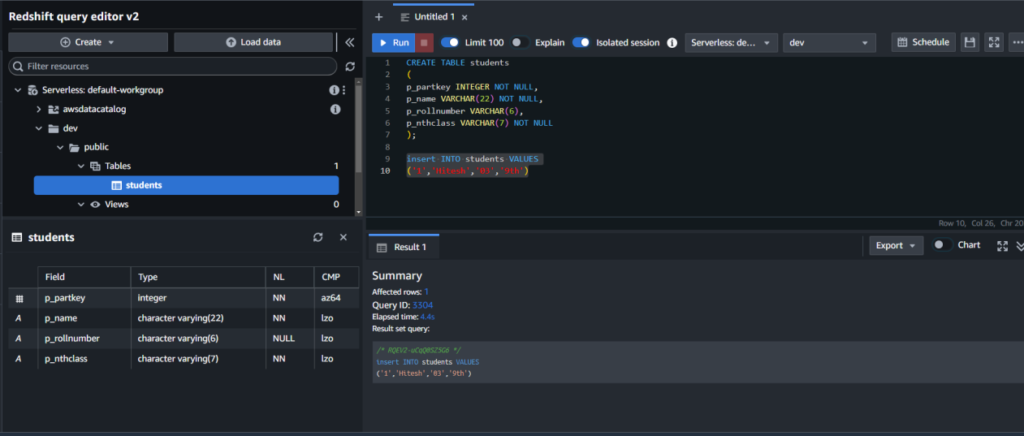
After created the inserted the value in student table just need to check
So this is the query
Select * from “dev”,”public”,”student”;
Insert the data using the above query.
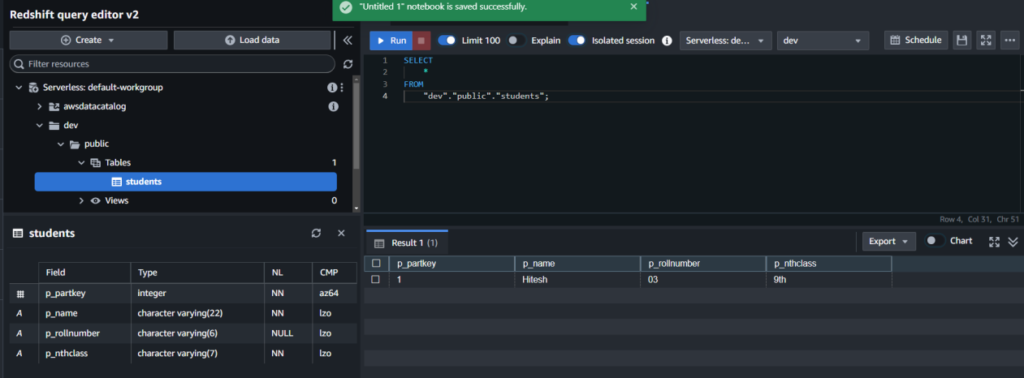
Above is the query to query the data on the table.

Awesome