Step 1: We need to go to aws management console with your credentials.
After Go To EC2 Dashboard,you will see the same page
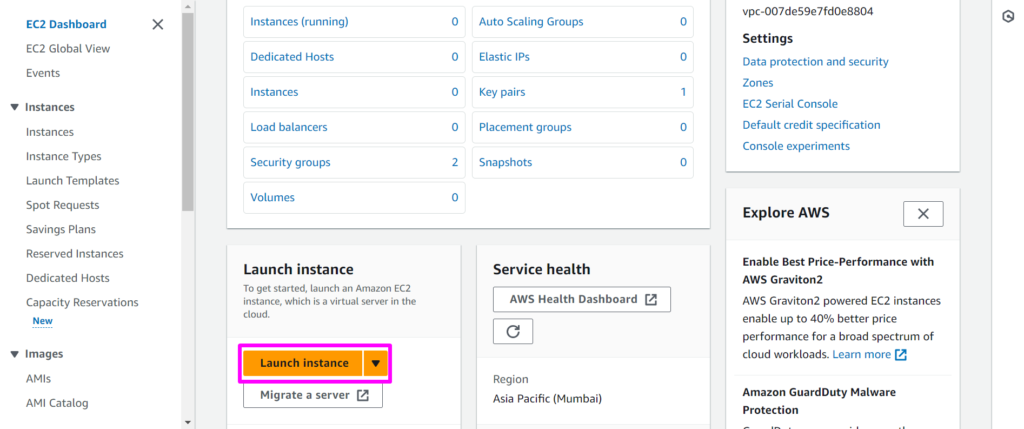
Then select Launch Instance.
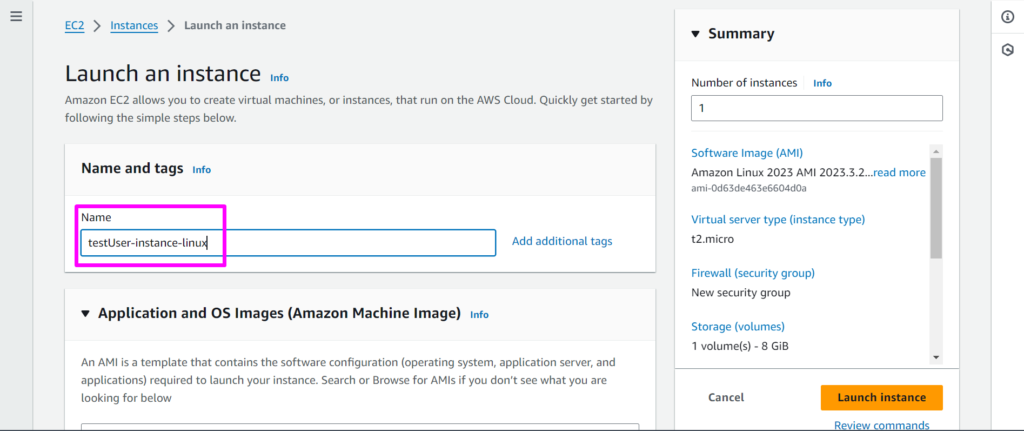
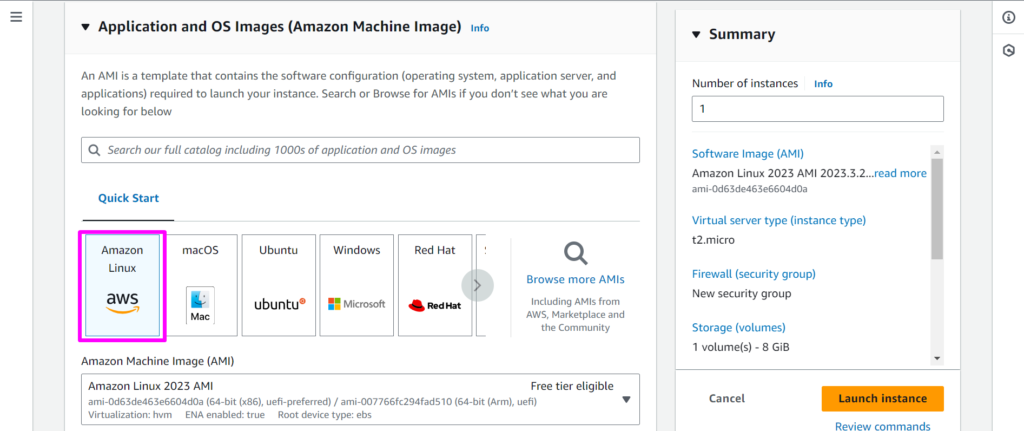
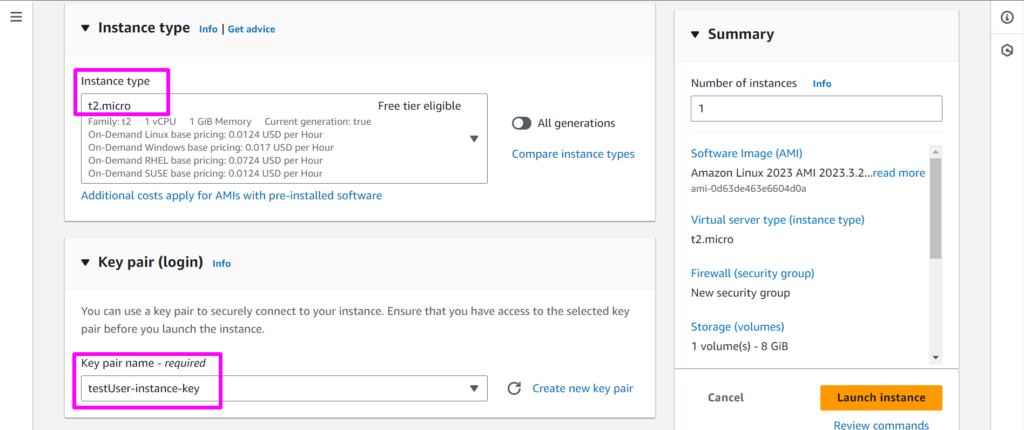
Step 2: Provide a name for your EC2 instance, select Amazon Linux operating
system, choose an instance type, and select the existing Key Pair that we
created earlier.
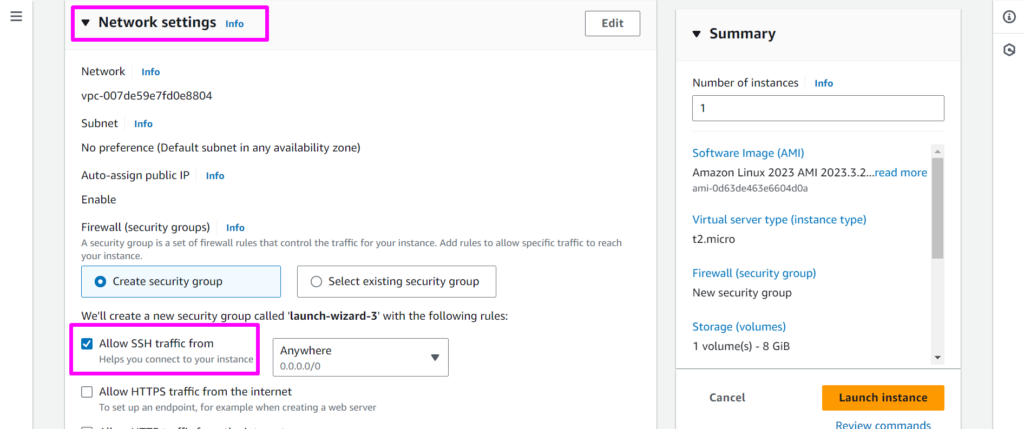
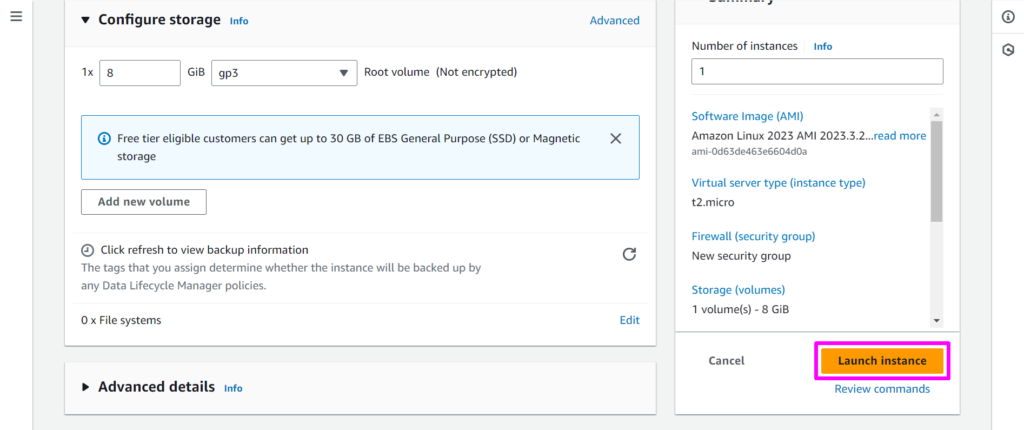
Step 3: Navigate to Network Settings, Allow SSH traffic in the firewall settings,
scroll to the bottom to review disk configurations, and then click on Launch
Instance.
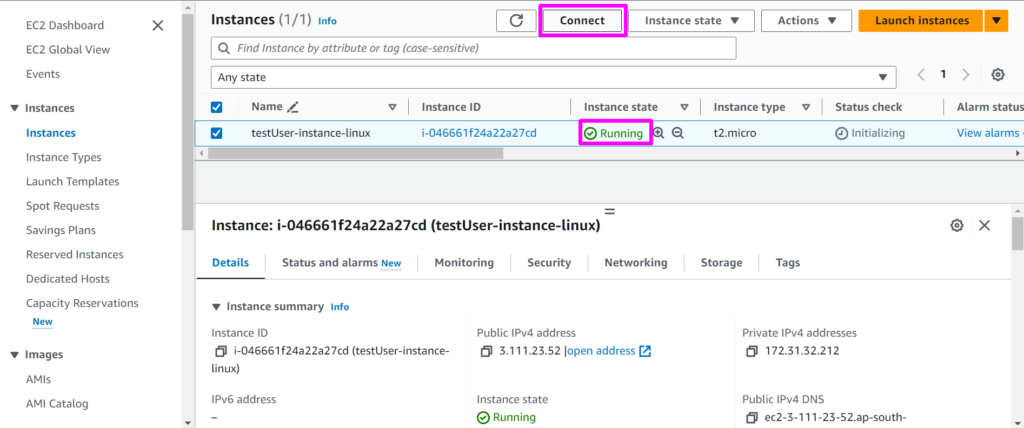
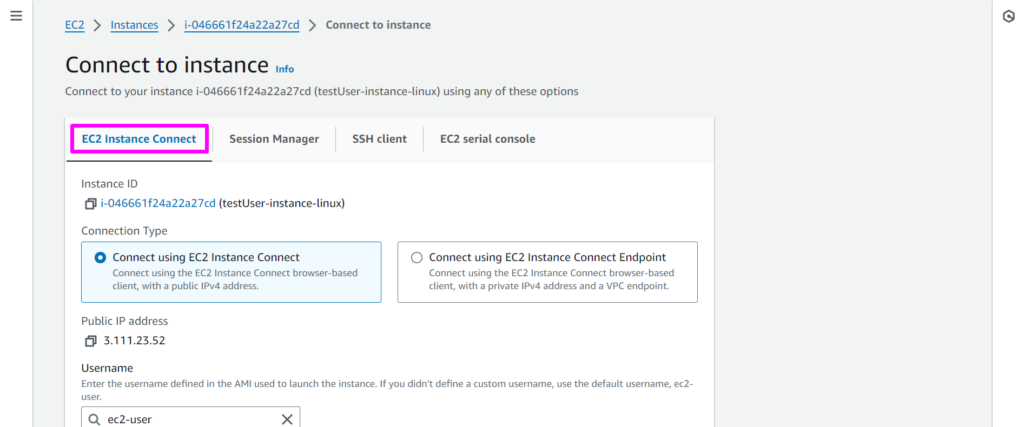
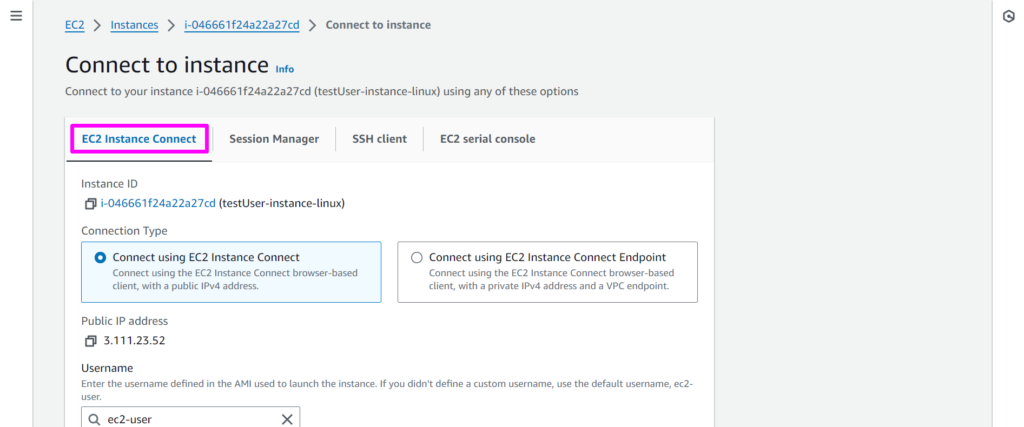
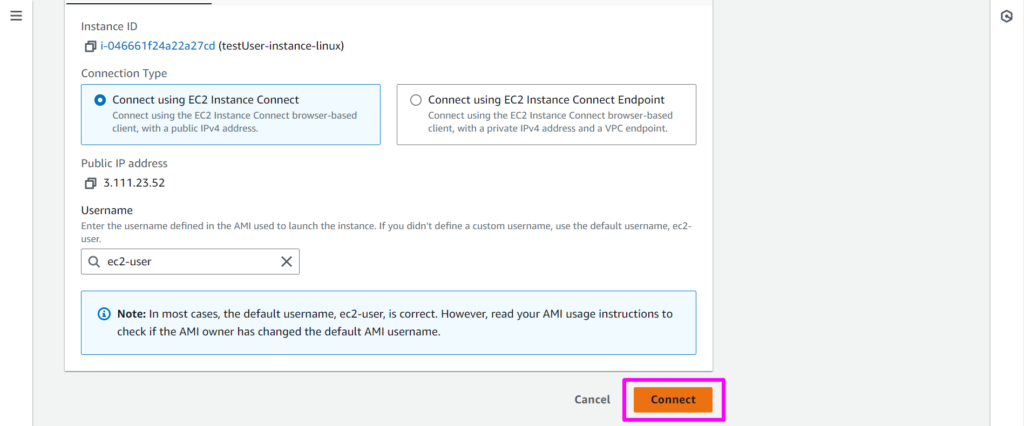
Step 4: Patience, and wait for your instance to reach the running state. Once
ready, select your Instance, click on Connect and proceed to the EC2 Instance
Connect option. Then, scroll to the bottom and click on Connect to connect to
the instance.
Step 5: Open your system terminal at the location where your SSH key is
stored.
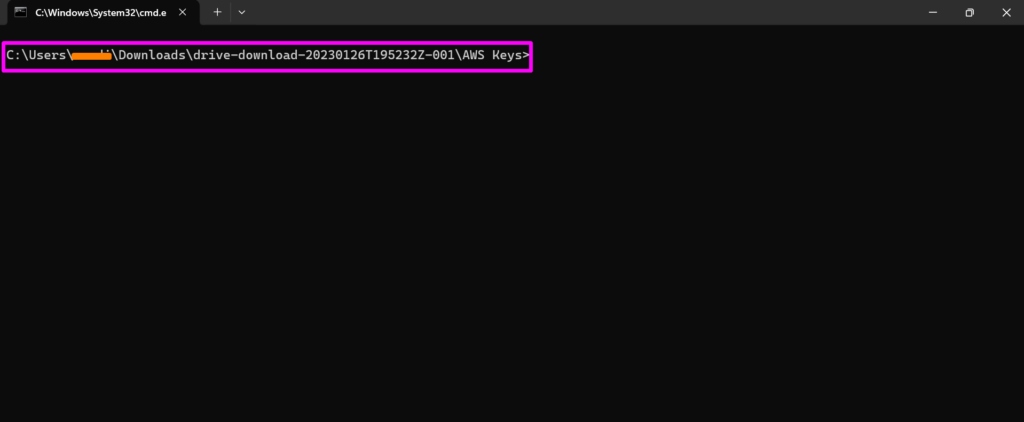
Step 5: Open your system terminal at the location where your SSH key is
stored.
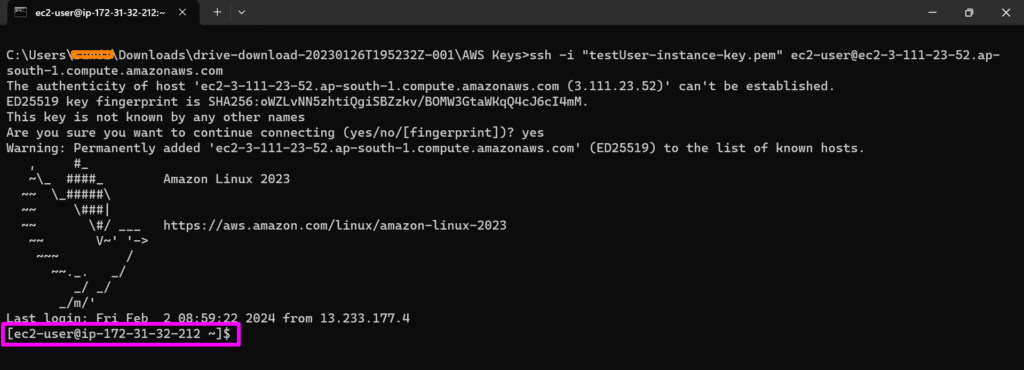
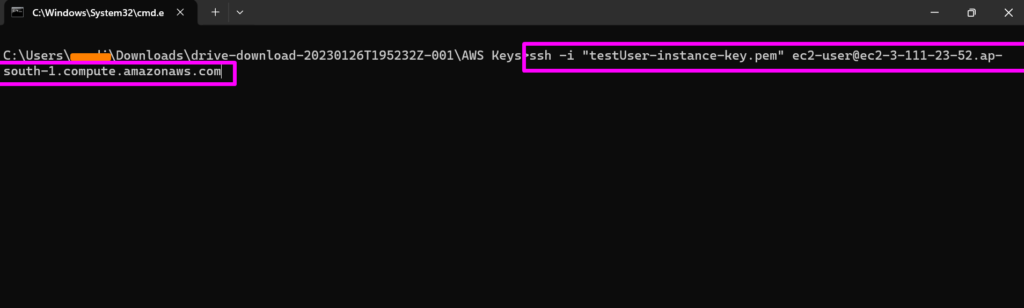
Step 6: Run the command in your terminal:
ssh -i username@public_ipv4_or_dns
Replace with the actual name of your SSH private key file,
username with your server’s username, and public_ip_or_dns with the IP
address or DNS of your server and hit Enter.
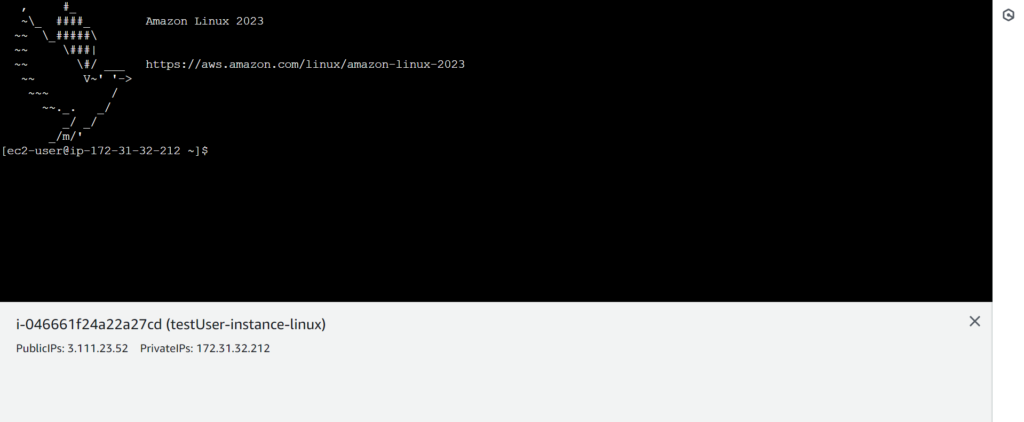
Step 7: Congratulations! You are now connected to your EC2 Instance, and
this completes our hands-on tutorial.