
Installing software using Ansible Playbook:
Prerequisite:
- 3 AWS Servers
- Keyless Access configured between master and slaves
- Configuration of slaves in Ansible Master’s /etc/ansible/hosts
- Slaves are called slave1 and slave2 respectively
Creating Ansible Playbook
Step 1: Edit an Ansible Playbook in a new folder called ‘ansible’, by using the
following commands:

$ mkdir ansible
$ cd ansible
$ sudo nano play.yaml
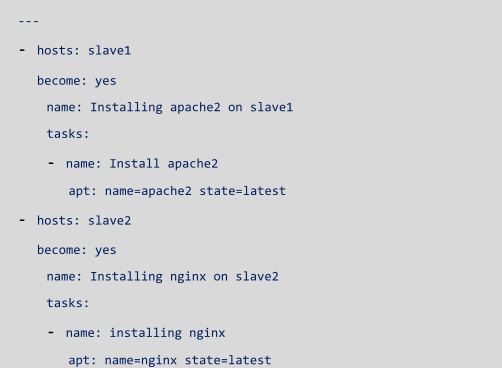
Step 2: Edit the play.yaml with the following syntax:
- - -
- hosts: slave1
   become: yes
   name : Installing Apache2 on slave1
   tasks:
    - name : install apache2
      apt: name=apache2 state=latest

-hosts: slave2
 become: yes
 name: Installing nginx on slave 2
 tasks:
 - name : install nginx
   apt : name=nginx state=latest

Step 3: Run the Ansible Playbook using the following command:

$ ansible-playbook play.yaml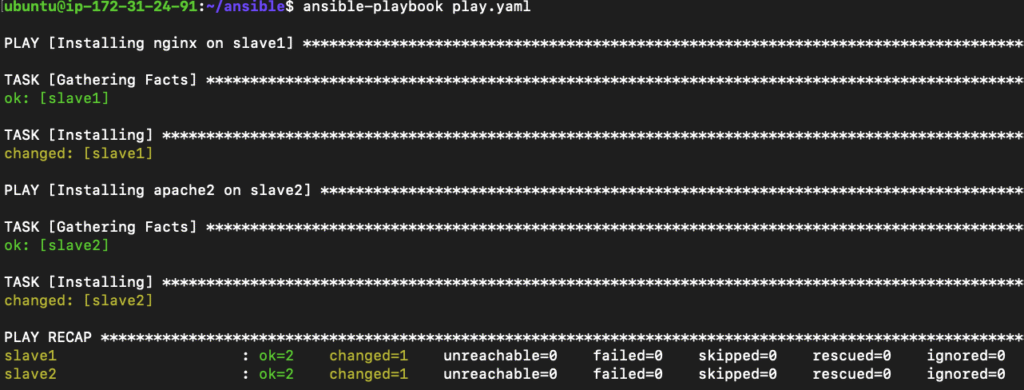
You have successfully installed NGINX and Apache2 on slave machines, based
on their name.
Executing scripts using Ansible Playbook:
Step 1:Create a sample script in the Ansible folder. Here we are creating a script
to enter some text in a file.

$ sudo nano script.shWrite the following syntax in the script:

#!/bin/sh
echo "hello world"> /var/www/html/1.html
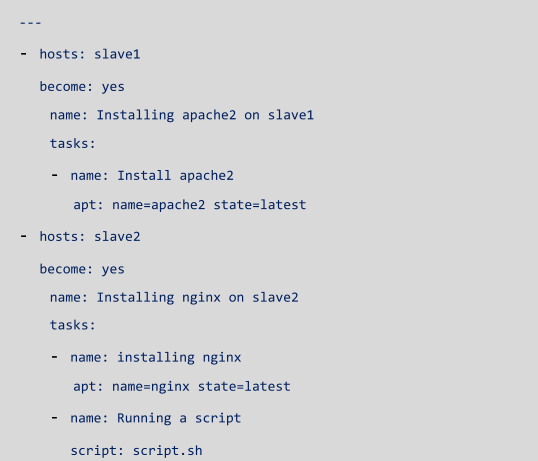
Step 2: Let’s create the Playbook now which is going to execute this script. Let’s
add a task to our previously written Playbook for slave2.
---
- hosts : slave1
  become : yes
   name: installing apache2 on slave1
   tasks:
     -  name: install apache2
         apt: name=apache2 state=latest

-hosts : slave2
 become: yes
  name: Installing nginx on slave2
  tasks:
   - name: installing nginx
      apt: name=nginx state=latest
  - name: Running a script
     script: script.sh
Step 3: Let’s run the script now using the following syntax:

$ ansible-playbook play.yaml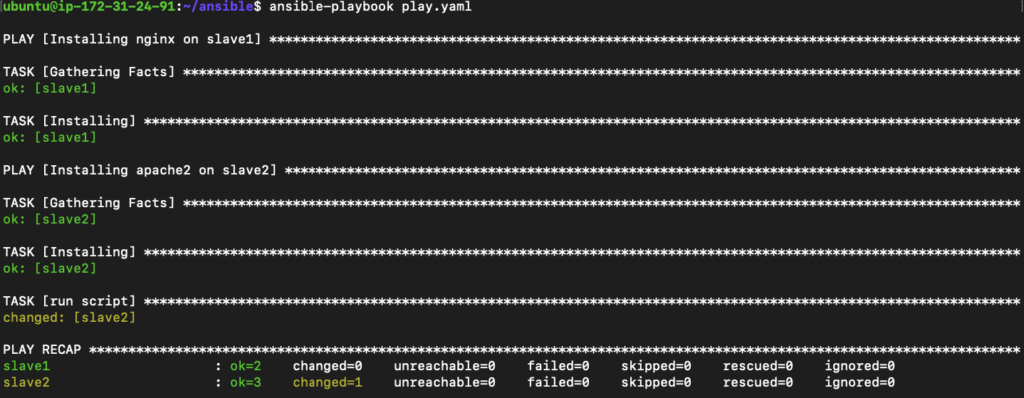
Let’s verify the output by going to our browser, and navigating to /1.html

With this, we have successfully completed our Ansible Playbook hands-on.
