
In today’s world of ever-evolving cyber threats, securing your digital resources is more important than ever. For AWS users, enabling Multi-Factor Authentication (MFA) is one of the simplest yet most effective ways to protect your account from unauthorized access. In this guide, we’ll walk you through everything you need to know about setting up MFA for your AWS account.
What is MFA and Why is it Important?
Multi-Factor Authentication (MFA) is a security feature that adds an extra layer of protection to your account. Instead of relying solely on a password, MFA requires you to provide a second form of authentication, such as a one-time password (OTP) from your smartphone or a hardware device.
- Enhanced Security: Even if someone obtains your password, they cannot access your account without the MFA code.
- Compliance: Many organizations and industries require MFA as part of their security best practices.
- Peace of Mind: Prevents unauthorized access to your sensitive AWS resources.
Step-by-Step Guide to Setting Up MFA on AWS
Step 1: Log In to Your AWS Account
- Navigate to the AWS Management Console.
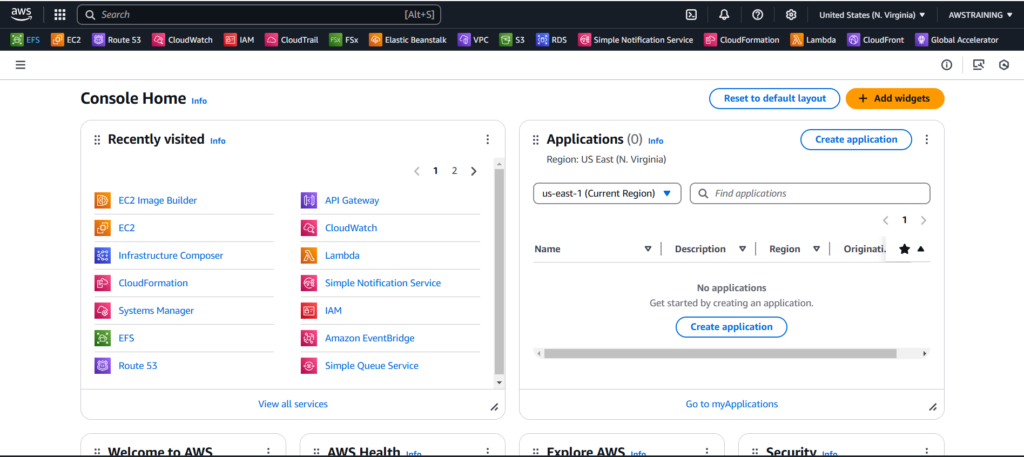
- Log in using your root account or IAM user credentials.
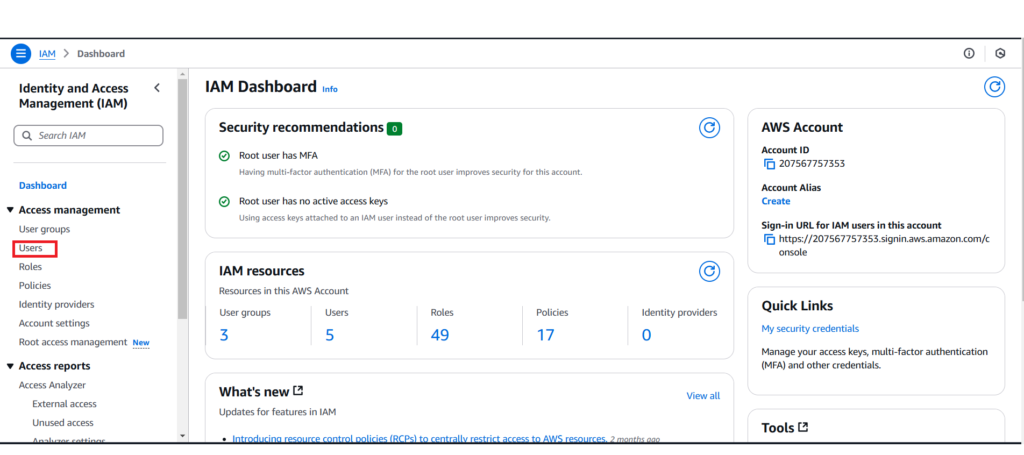
Step 2: Access the Security Credentials Page
Step 2: Access the Security Credentials Page
- For Root Accounts:
- Click your account name in the top-right corner of the console.
- Select Security Credentials from the dropdown menu.
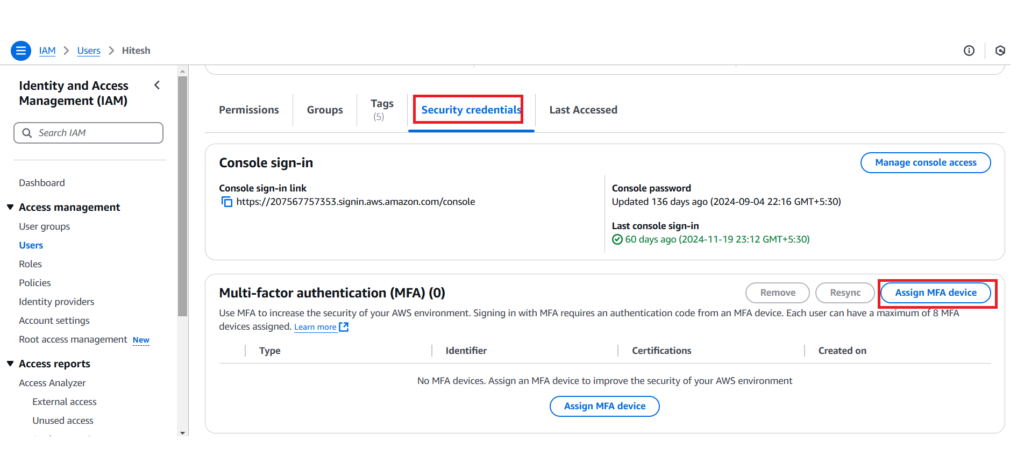
- For IAM Users: Go to the IAM Management Console.Click Users, select your username, and navigate to the Security credentials tab.
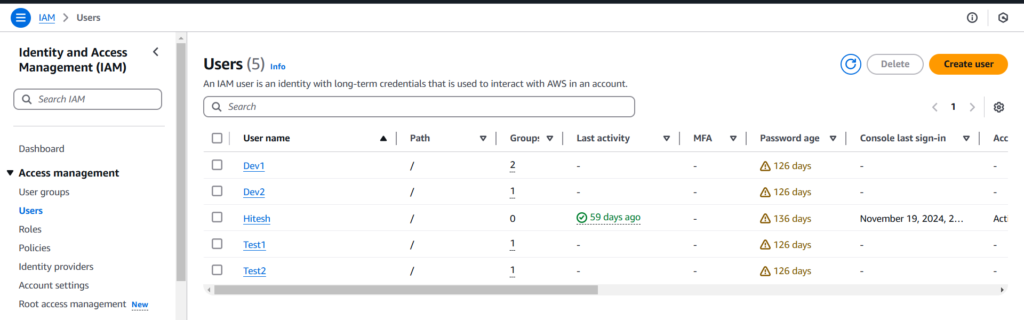
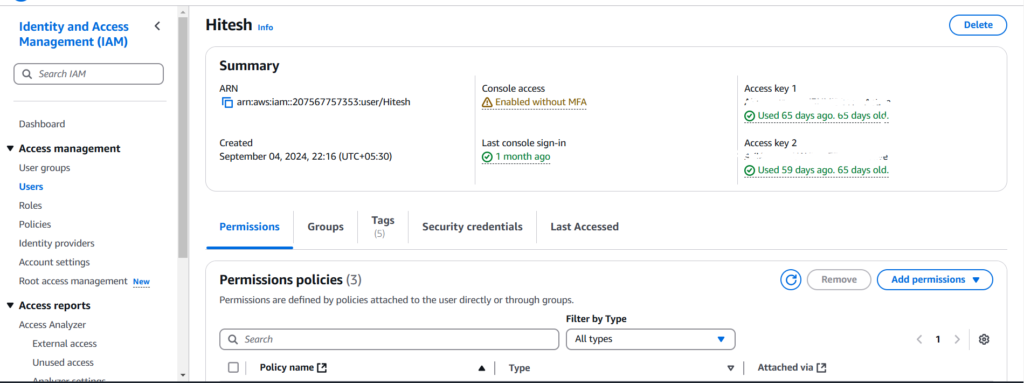
Step 3: Activate MFA
- Locate the Multi-Factor Authentication (MFA) section.
- Click Activate MFA to begin the setup process.
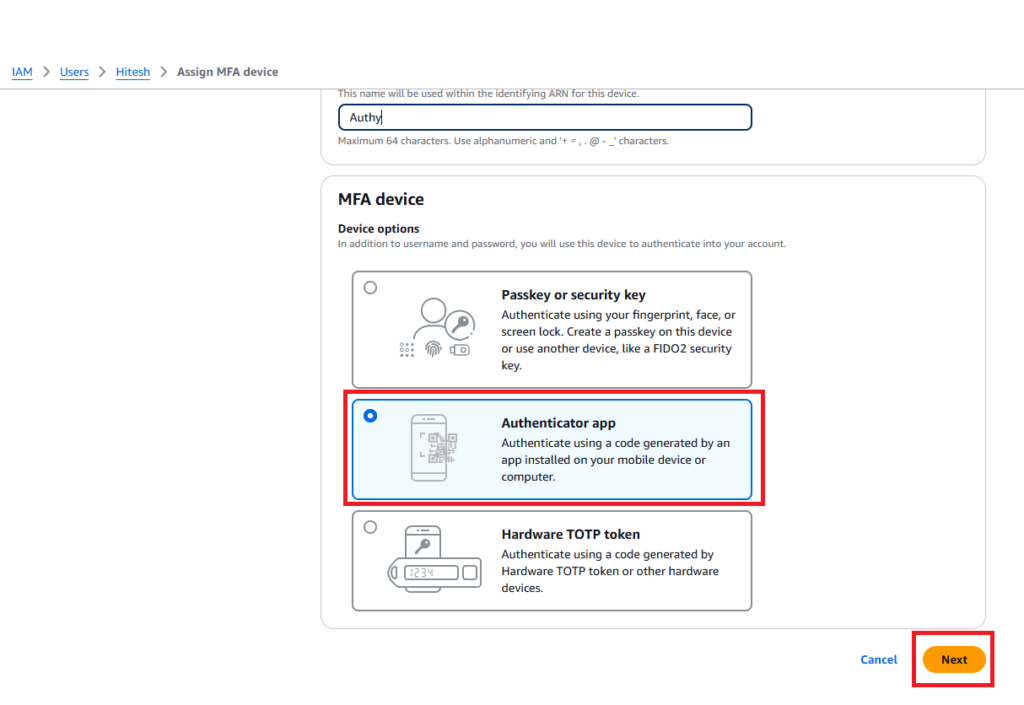
Step 4: Choose Your MFA Device Type
AWS supports three types of MFA devices:
- Virtual MFA Device: Use apps like Google Authenticator, Authy, or the AWS MFA app.
- Hardware MFA Device: Use a physical token purchased from AWS partners.
- Security Key: Use FIDO-compliant devices like YubiKey.
Most users opt for a virtual MFA device for convenience. Select this option and proceed.
Step 5: Configure the MFA Device
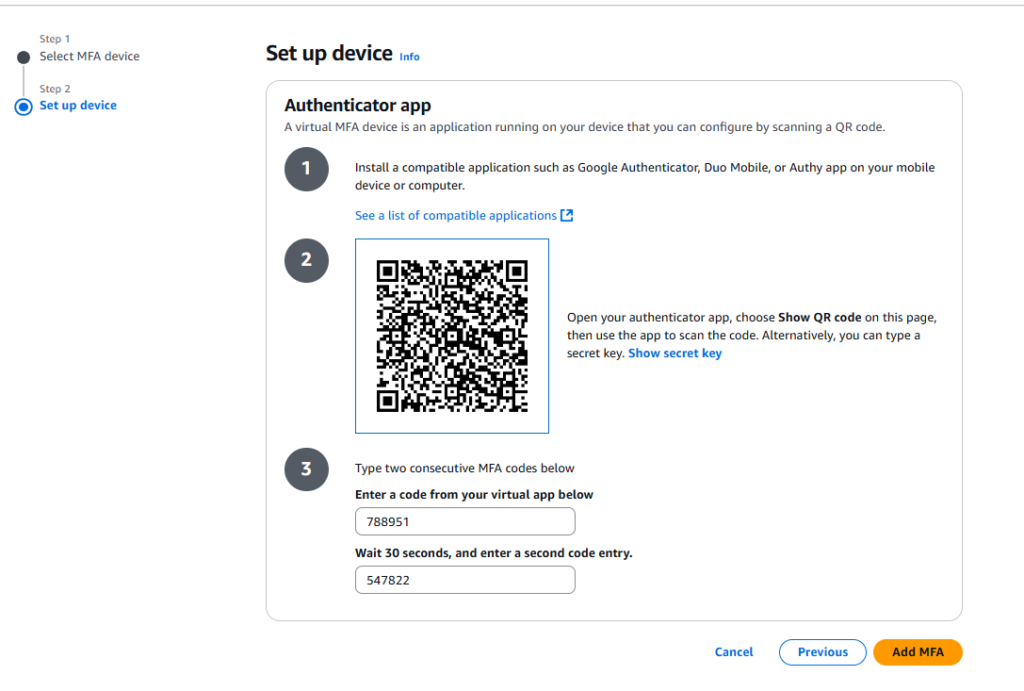
- Download a virtual MFA app on your smartphone (e.g., Google Authenticator, Authy).
- Open the app and scan the QR code displayed in the AWS Console. If scanning isn’t possible, manually enter the key provided by AWS.
- The app will generate one-time passwords (OTPs) that refresh every 30 seconds.
Step 6: Verify Your MFA Device
- Enter two consecutive OTPs from the app into the AWS Console.
- Click Assign MFA to complete the setup.
Best Practices for MFA on AWS
- Enable MFA for All Users: Ensure all IAM users in your organization have MFA enabled.
- Backup Your MFA Device: Note down recovery codes or have a backup MFA device to avoid being locked out.
- Use Hardware Tokens for High-Security Needs: For sensitive environments, consider using hardware MFA devices for added security.
Testing Your MFA Configuration
- Log out of the AWS Management Console.
- Log in again and verify that the system prompts you for an MFA code.
- Enter the OTP from your device to confirm the setup works as expected.
