
Here’s a quick and easy guide on how to install Docker on different operating systems. Just pick the one you’re using:
🐳 For Ubuntu (Linux)
sudo apt update -y
sudo apt install -y ca-certificates curl gnupg lsb-release

# Add Docker’s GPG key
sudo mkdir -p /etc/apt/keyrings
curl -fsSL https://download.docker.com/linux/ubuntu/gpg | sudo gpg --dearmor -o /etc/apt/keyrings/docker.gpg

# Add Docker’s repository
echo \
  "deb [arch=$(dpkg --print-architecture) signed-by=/etc/apt/keyrings/docker.gpg] https://download.docker.com/linux/ubuntu \
  $(lsb_release -cs) stable" | sudo tee /etc/apt/sources.list.d/docker.list > /dev/null

# Install Docker Engine
sudo apt update
sudo apt install -y docker-ce docker-ce-cli containerd.io docker-buildx-plugin docker-compose-plugin

# Start Docker
sudo systemctl start docker
sudo systemctl enable docker

# Optional: Run Docker as non-root
sudo usermod -aG docker $USER
newgrp docker
🐳 For CentOS / RHEL
sudo yum install -y yum-utils
sudo yum-config-manager --add-repo https://download.docker.com/linux/centos/docker-ce.repo

sudo yum install -y docker-ce docker-ce-cli containerd.io

sudo systemctl start docker
sudo systemctl enable docker
🪟 For Windows
1.Go to: https://www.docker.com/products/docker-desktop/
2.Download and install Docker Desktop.
3.Enable WSL 2 during installation (if not already).
4.Restart your machine if prompted.
5.Run Docker Desktop and make sure it says “Docker is running”.
🍏 For macOS
Visit: https://www.docker.com/products/docker-desktop/
Download the macOS version.
Drag and drop Docker into Applications and launch it.
It may ask for system permissions or updates – approve them.
🐳 How to Install Docker Community Edition (Docker CE)
Docker CE (Community Edition) is the free and open-source version of Docker used by developers, sysadmins, and DevOps professionals to build, run, and manage containerized applications.
🧰 1. Install Docker CE on Ubuntu (Linux)
# Step 1: Update system packages
sudo apt update

# Step 2: Install required packages
sudo apt install -y ca-certificates curl gnupg lsb-release

# Step 3: Add Docker’s GPG key
sudo mkdir -p /etc/apt/keyrings
curl -fsSL https://download.docker.com/linux/ubuntu/gpg | \
sudo gpg --dearmor -o /etc/apt/keyrings/docker.gpg

# Step 4: Add Docker repository
echo \
"deb [arch=$(dpkg --print-architecture) signed-by=/etc/apt/keyrings/docker.gpg] \
https://download.docker.com/linux/ubuntu $(lsb_release -cs) stable" | \
sudo tee /etc/apt/sources.list.d/docker.list > /dev/null

# Step 5: Install Docker CE
sudo apt update
sudo apt install -y docker-ce docker-ce-cli containerd.io

# Step 6: Start and enable Docker
sudo systemctl start docker
sudo systemctl enable docker

# Step 7: (Optional) Run Docker as non-root user
sudo usermod -aG docker $USER
newgrp docker

# Step 8: Test Docker
docker run hello-world
🪟 2. Install Docker CE on Windows
1.Download Docker Desktop from the official site:
👉 https://www.docker.com/products/docker-desktop/
2.Run the installer and follow the setup wizard.
3.Ensure WSL 2 and virtualization are enabled (installer will prompt if needed).
4.After installation, open Docker Desktop and wait for it to start.
5.Open a terminal and test Docker:
docker run hello-world🍏 3. Install Docker CE on macOS
- Download Docker Desktop for Mac:
👉 https://www.docker.com/products/docker-desktop/ - Open the
.dmgfile and drag Docker into Applications. - Launch Docker Desktop and grant necessary permissions.
- Test Docker in Terminal
docker run hello-world✅ Verify Installation
After installation, verify that Docker is working by running:
docker --version
docker info
docker run hello-world
For More Information https://docs.docker.com/engine/install/
Now we need to Pull ubuntu container from https://hub.docker.com.
And search ubuntu
Click Images And Trusted Content Check the Docker Official Image then after search ubuntu.you see the the ubuntu docker official image
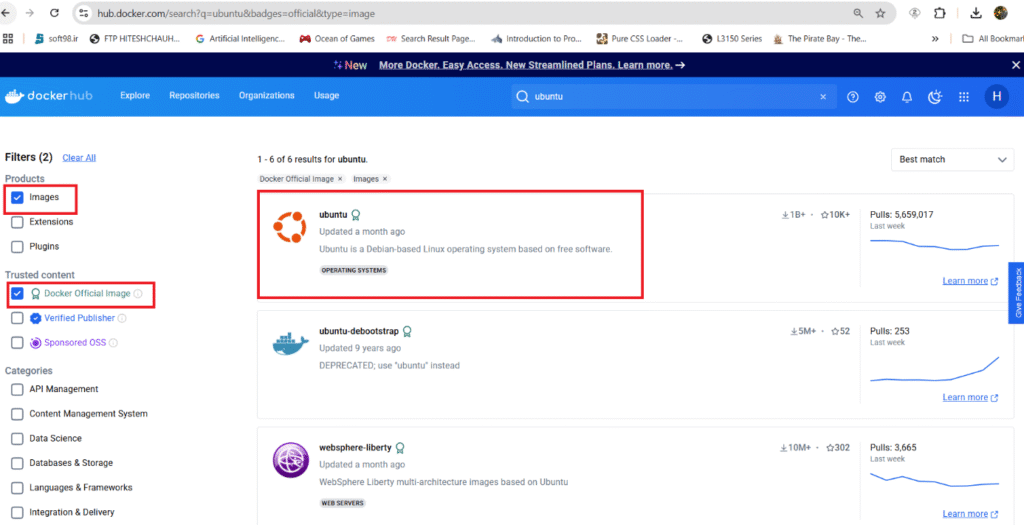
After Click the ubuntu image click the image and copy the docker pull ubuntu command.
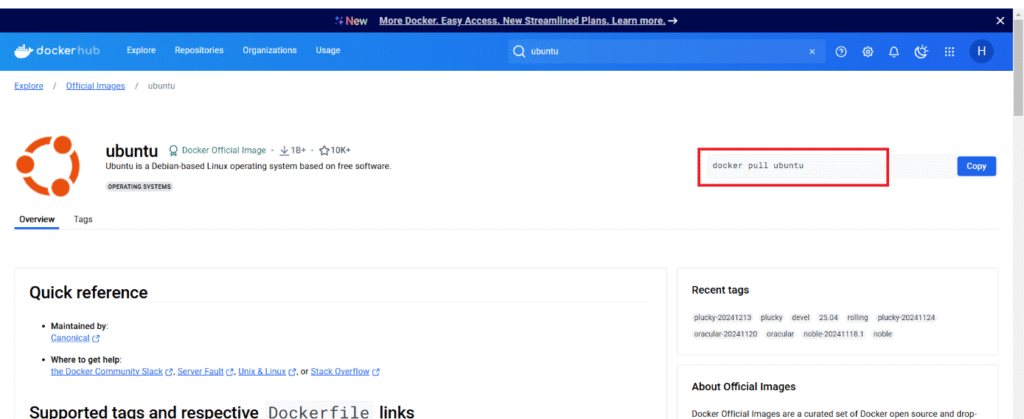
Then This command paste in to linux where you installed the docker

After paste the command you will see the image status.
NOTE:If Ubuntu Image is already there you will see this below screenshot,if not there so docker will pull the image.

After Pull the ubuntu image.now run this below command
Run this container and map port 80 on the local
sudo docker run -itd -p 80:80 ubuntu

After Run this command You will see the container id.you can see the container of this command
docker ps -a

You will see also on docker desktop and image will see here also.
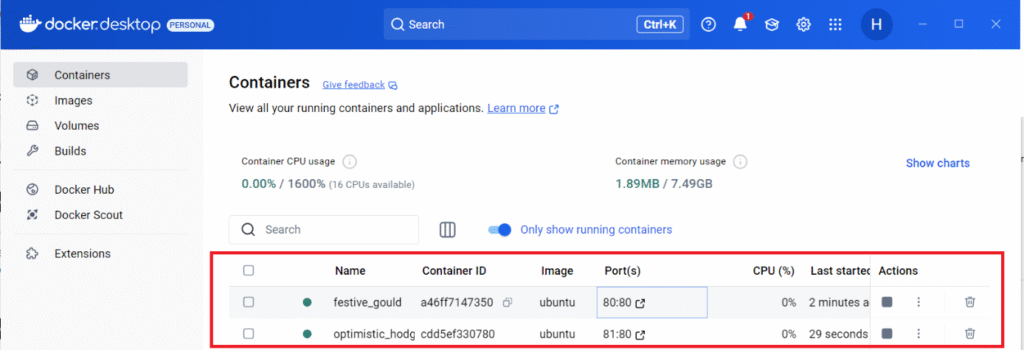
Then you need to take the container access
In This case either you will go with container id or container name.
Command is
sudo docker exec -it cdd5ef330780 bash

After run this command you will go inside the container
Then run this command
apt update
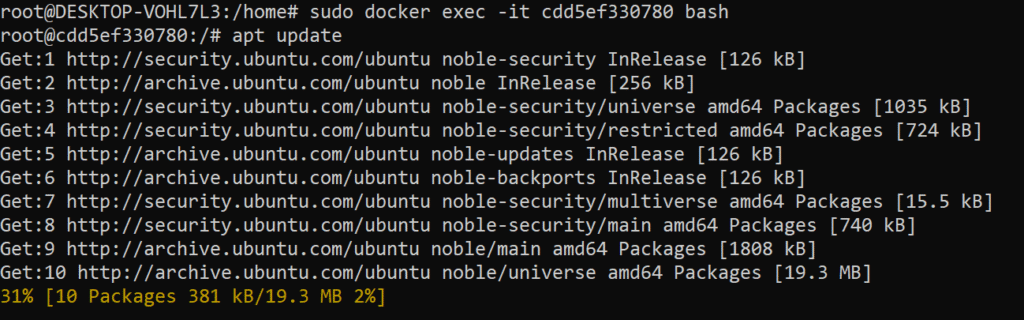
After use this command
This command use for install the apache in ubuntu container
apt install apache2 -y
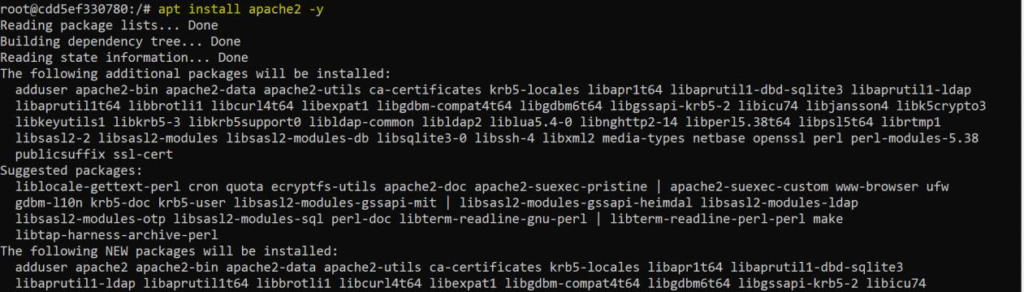
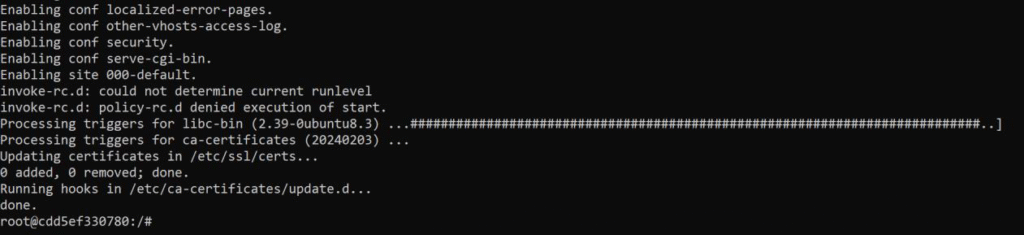
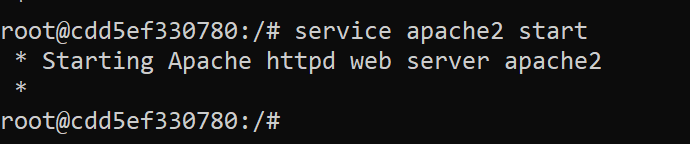
After install the apache2 we need to check the service of apache
So command is
service apache2 status

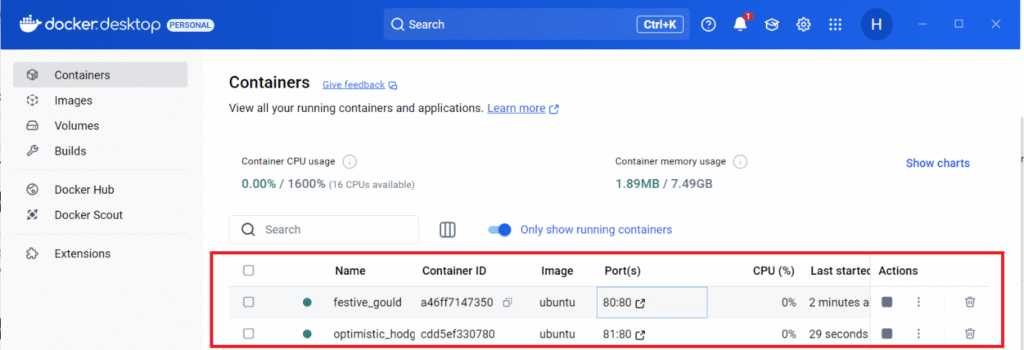
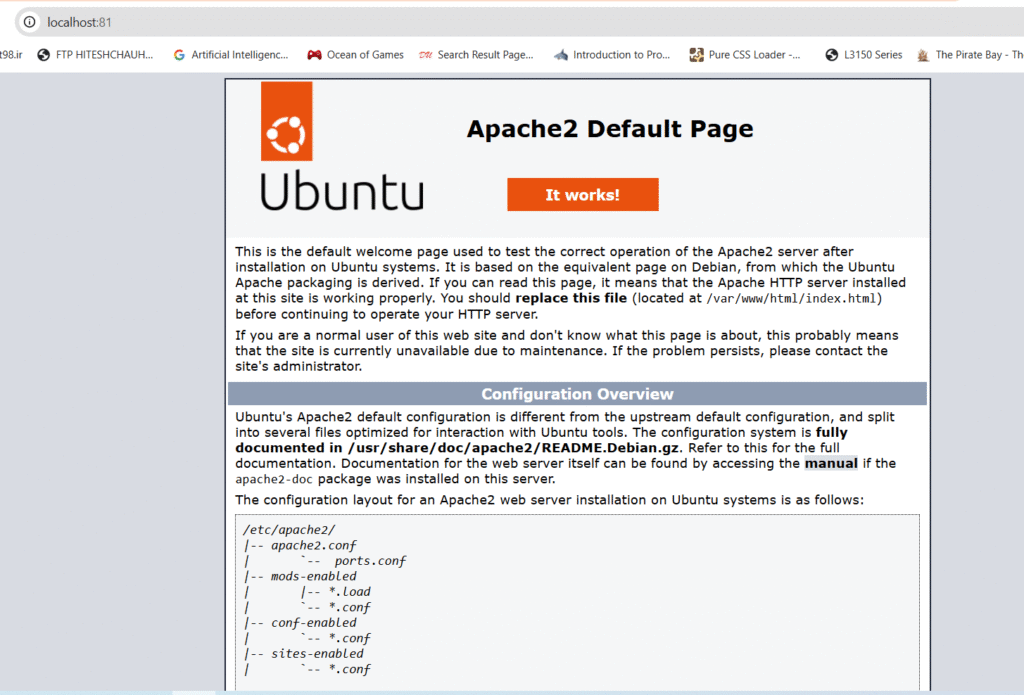
Open the Web brower port no 81:80 so you will the below apache by default page.

Good